
Recurring jobs
Set up repeating work once — Zoop creates each visit on schedule.
Use a job series when you do the same work for a customer on a regular schedule — weekly lawn care, monthly filter changes, annual inspections. You set up the details once, and Zoop creates each visit for you automatically and puts them on your calendar.
Create a recurring job
Open the new job form
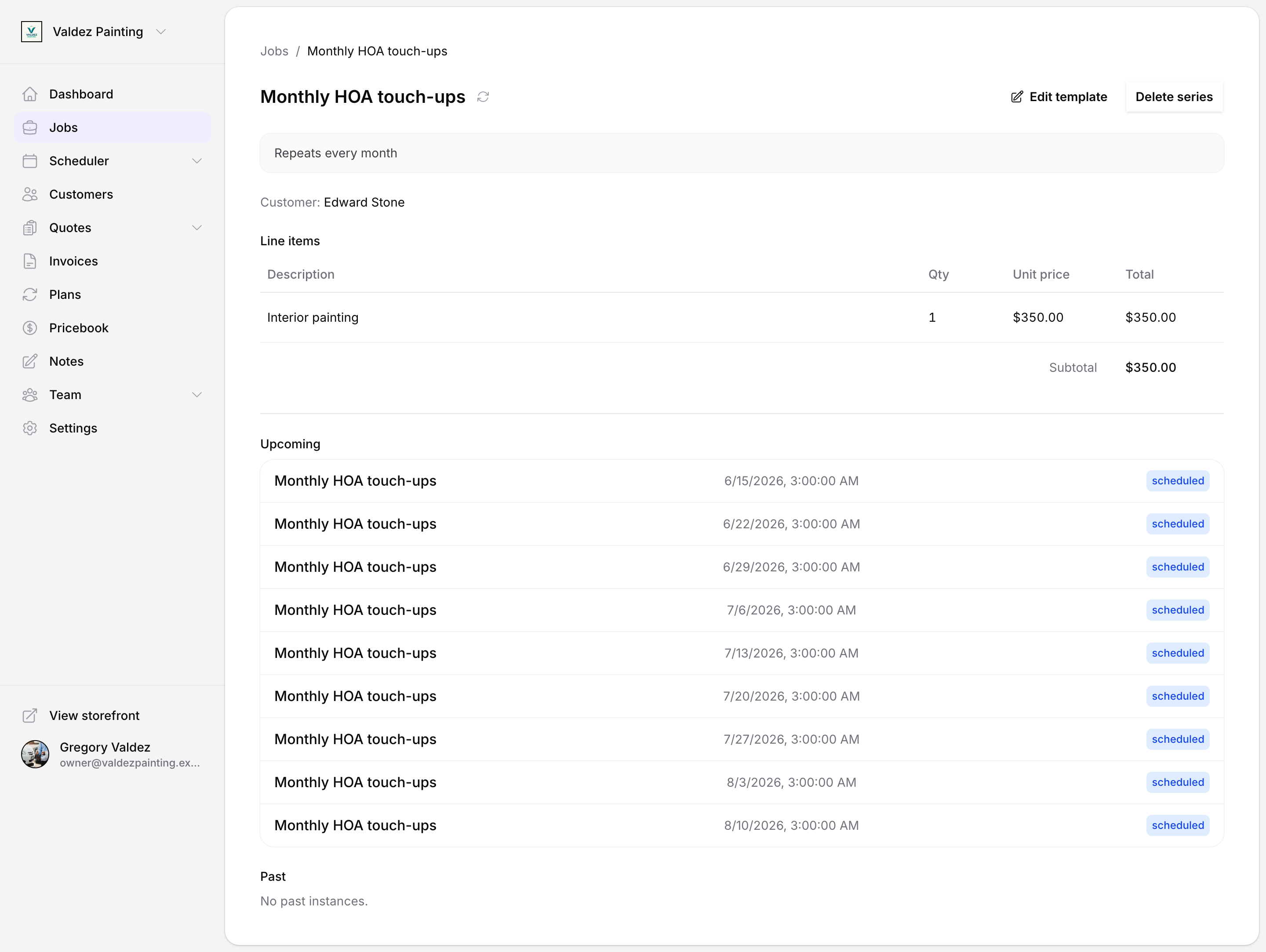
Go to Jobs and tap New job.
Fill in the basics
Add a title, customer, and any assigned techs. Optionally add line items or a flat price — these become the default for every generated visit.
Switch to recurring
Below the assignment section, tap Recurring in the schedule toggle. The one-time date fields are replaced by the recurrence editor.
Set the schedule
Pick a frequency (daily, weekly, monthly, or yearly) and an interval — for example, an interval of 2 with "weekly" means every two weeks. For weekly rules, also select which days of the week. For monthly rules, choose between same date each month, a specific weekday position (e.g. second Tuesday), or the last weekday of the month.
Then set:
- Start date — the date the first visit falls on.
- Timezone — used to anchor the schedule to local time so visits don't drift with daylight saving.
- End — choose Never, On date, or After N occurrences.
Save
Tap Create job. Zoop saves the series and immediately creates the first 8 weeks of visits. You land on the series detail page.
How Zoop generates visits
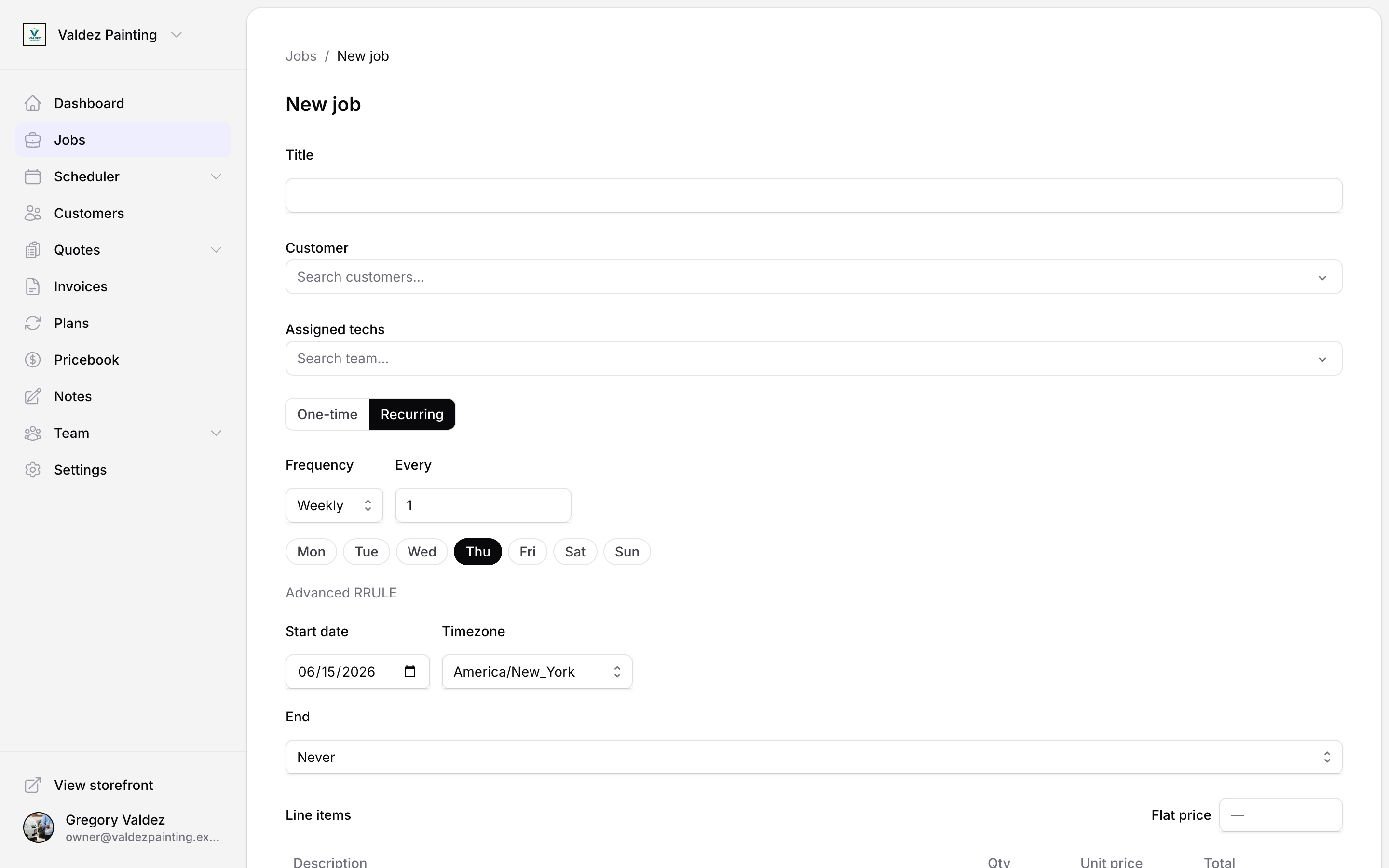
When you save a series, Zoop creates the next 8 weeks of visits right away. Each visit gets the series title, pricing, line items, and assigned techs automatically. Zoop checks daily and adds new visits as the window rolls forward, so your upcoming list stays current.
Each visit starts in scheduled status. You can open any individual visit and change it without affecting the rest of the series.
View a series
From the Jobs list, tap any visit that belongs to the series — recurring visits show a small repeat icon next to their title. On the job detail page, find the schedule section and tap View series. From the series detail page you can see:
- The recurrence summary (e.g. "Repeats every week on Monday, Thursday").
- The customer linked to the series.
- Pricing — either a flat price or itemized line items.
- Upcoming — visits that haven't happened yet.
- Past — visits that are done or were cancelled. These are permanent records and are never removed.
Edit a series
To change the title, schedule, pricing, or assigned techs across future visits, open any upcoming visit and tap Edit. Zoop asks how far the change should reach:
- Just this occurrence — changes only this single visit. The rest of the series is unaffected.
- This and future occurrences — changes this visit and all visits from that point forward. Completed or cancelled visits before this date are left alone.
- All occurrences — changes the series template. Zoop removes all upcoming visits and rebuilds them from the updated template. Done or cancelled visits are preserved as historical records.
Editing with "all occurrences" replaces every upcoming visit. If you've manually adjusted the time or details of individual visits that haven't happened yet, those changes will be overwritten.
You can also go to the series detail page and tap Edit template — this does the same thing as choosing "all occurrences." The button only appears when at least one upcoming visit exists.
What changes and what doesn't
| What you change | Just this occurrence | This and future | All occurrences |
|---|---|---|---|
| Title, notes, pricing | This visit only | This visit onward | All upcoming visits |
| Recurrence schedule | No effect | New schedule from here | New schedule from start |
| Assigned techs | This visit only | This visit onward | All upcoming visits |
| Done or cancelled visits | Untouched | Untouched | Untouched |
End a series
To stop new visits from being created, go to the series detail page and tap Delete series. Zoop cancels every upcoming visit and keeps all your completed jobs as permanent records — nothing you've already done is lost.
Ending a series cancels all upcoming visits right away and cannot be undone. If you only need a short break, a softer option is to open each upcoming visit individually and set its status to cancelled, then leave the series intact for when work resumes.
Recurring jobs from a quote
You can also create a recurring job series from an accepted quote. On the quote detail page, when converting to a job, choose Recurring and configure the schedule. Zoop links the series back to the originating quote for reference. See Quotes for details on the conversion flow.
Related
- Jobs — manage individual visits within a series or standalone jobs.
- Calendar — see all upcoming visits laid out by date.
- Invoices — each generated visit can have its own invoice.
- API reference: job series — create and manage series programmatically.