
Your dashboard
A live snapshot of your business that changes with your role — owners see money and jobs, crews see today's work.
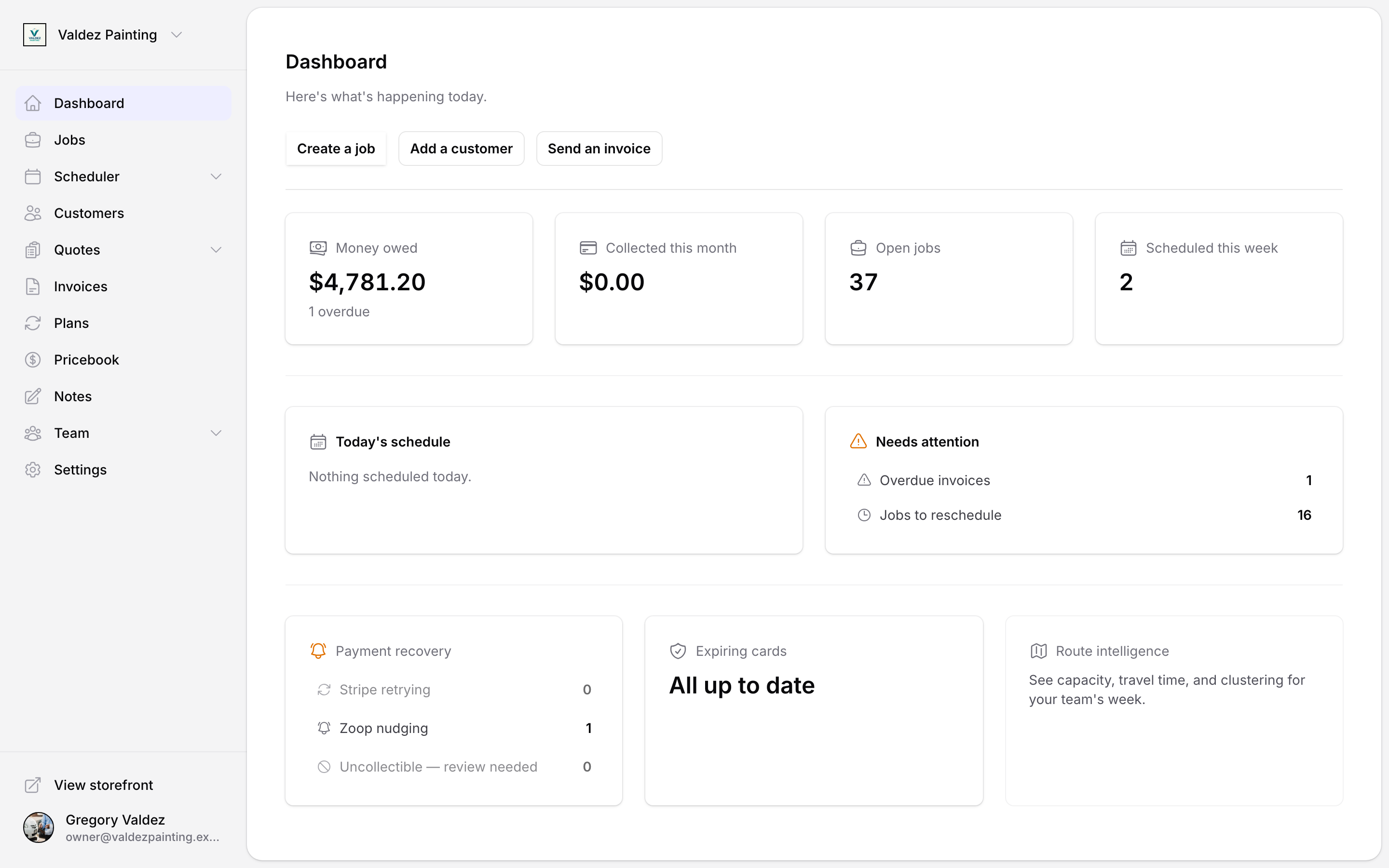
The dashboard is the first thing you see when you open Zoop. The header reads Dashboard, with the subtitle "Here's what's happening today." Below it is a live snapshot of your business — your numbers, today's schedule, and anything that needs action — without digging through every screen. Nothing to set up; it updates automatically.
What you see depends on your role. An owner sees money and the whole operation. A dispatcher sees the schedule and incoming work, but no money. Crew see only the jobs assigned to them.
What you see by role
Your role decides which cards and buttons appear. Dispatcher is the office role and crew is the tech role — see Team for who gets which.
| Your role | Quick-action buttons | What's on your dashboard |
|---|---|---|
| Owner | Create a job, Add a customer, Send an invoice | All four owner numbers, today's schedule, needs attention, payment recovery, expiring cards, and route intelligence. |
| Dispatcher (office) | Create a job, Add a customer, Send an invoice | Open jobs, scheduled this week, active customers, and new requests — plus today's schedule, needs attention, and route intelligence. No money figures. |
| Crew (tech) | View your calendar | Jobs today and jobs this week for your own assigned jobs, plus today's schedule. No money, no needs-attention card. |
The quick-action buttons sit at the top of the page.
Your numbers
A row of stat cards sits near the top. Which ones you see depends on your role.
| Card | Who sees it | What it shows |
|---|---|---|
| Money owed | Owner | Total unpaid balance across your open invoices. When any are past due, it adds a " overdue" hint. Select it to open your invoices. |
| Collected this month | Owner | Net card payments you've collected this calendar month. |
| Open jobs | Owner, dispatcher | Jobs that are unscheduled or scheduled. Select it to open your jobs. |
| Scheduled this week | Owner, dispatcher | Scheduled jobs starting in the next 7 days. Select it to open your calendar. |
| Active customers | Dispatcher | Customers currently on your books. |
| New requests | Dispatcher | Booking requests waiting for you to confirm. |
| Jobs today | Crew | Your assigned jobs for today. |
| Jobs this week | Crew | Your assigned jobs starting in the next 7 days. |
A couple of plain-English rules for the time windows:
-
This week means the next 7 days.
-
This month means the current calendar month.
-
Every count and dollar figure is live — no refresh needed.
TODO(screenshot): the stat-card row at the top of the dashboard.
Today's schedule
Everyone sees a "Today's schedule" card. It lists today's jobs in your local time. Each row shows:
-
The time, like "9:00 AM".
-
The customer's name, or the job title if there's no customer name.
-
A status badge — Scheduled, Unscheduled, Done, or Cancelled.
Crew see only their own jobs here. Owners and dispatchers see everyone's. When there's nothing on the books for today, the card reads "Nothing scheduled today."
TODO(screenshot): the Today's schedule card with a few jobs and their status badges, alongside the empty "Nothing scheduled today" state.
Needs attention
The "Needs attention" card surfaces only live items that need you to do something, and each one links straight to where you fix it. Owners and dispatchers see this card; crew don't.
What shows up depends on your role:
| Item | Owner | Dispatcher |
|---|---|---|
| Overdue invoices | Yes | — |
| Jobs to reschedule | Yes | Yes |
| New booking requests | Yes | Yes |
| Expiring cards | Yes | — |
When there's nothing to act on, the card reads "Nothing needs your attention right now."
TODO(screenshot): the Needs attention card with a few items, alongside the all-clear "Nothing needs your attention right now" state.
Payment recovery
Owners only. The payment recovery card (labeled "Payment recovery") tracks invoices that are overdue or in a failed-payment cycle. It breaks them into three buckets:
| Bucket | What it means |
|---|---|
| Stripe retrying | A payment failed and Stripe is automatically trying it again over the next few days. No action needed yet. |
| Zoop nudging | The invoice has been sent and Zoop is automatically emailing or texting the customer reminders. |
| Uncollectible — review needed | Invoices marked uncollectible in the last 30 days. Each one needs a decision from you: write it off, or re-open it and try again. |
Each non-empty row links to the invoices list filtered to that bucket, so you can act on the right ones without hunting.
When there is nothing in any bucket, the card reads "All caught up."
TODO(screenshot): payment recovery card showing all three buckets with non-zero counts, and the empty "all caught up" state side by side.
Expiring cards
Owners only. This card shows how many customers have a saved payment card expiring within the next 30 days that the card network has not already refreshed for you.
Most cards update silently in the background — Zoop never shows those. The ones listed here genuinely need your attention, because a charge will fail if the card expires before the customer updates it.
-
If only one customer is affected, the card links straight to that customer's page.
-
If more than one customer is affected, the link takes you to a filtered view of your customers list.
-
When everything is current, the card reads "All up to date."
Route intelligence
Owners and dispatchers. This card is a shortcut to your route intelligence view: "See capacity, travel time, and clustering for your team's week." Select the card to open it.
TODO(screenshot): route intelligence card in both the empty and populated states.
New to Zoop? Start here
If you're a new owner, the first thing you'll see is a setup checklist card above the dashboard — three quick steps to get your account ready. It checks itself off as you go and disappears once you're set up. The first time you land here, Zoop also shows a one-time "Welcome to Zoop" popup pointing you at those steps. Get set up walks through the whole thing.
Until you've added any data, an owner dashboard shows a "Let's get you set up" prompt — "Add your first customer, then create a job to start tracking your work." — with Add a customer and Create a job buttons.
If you're crew and nothing's been assigned to you yet, your dashboard reads "Nothing on your plate yet" — "When a job is assigned to you, it'll show up here."