
Messaging customers
Text and email customers from Zoop and keep every conversation in one place.
Zoop keeps every text and email tied to a customer in one place. Each customer's record has a timeline showing every message — sent, received, or sent automatically by Zoop — so you can always see what was said and when.
How messaging works
Zoop sends texts (SMS) and emails on your behalf. You do not need to set up a separate texting or email service — Zoop handles that. Messages go out from the phone number and email address Zoop has set up for your account.
Most messages go out automatically — for example, Zoop sends an invoice to your customer when you mark it ready, and a receipt after they pay (see Automated messages below). Replies from customers come straight back in and are matched to the right customer record automatically.
To send a one-off text or email outside of those automatic events, you need to use the Zoop API. There is no free-form compose screen in the app yet.
Viewing a customer's messages
Open a customer
Go to Customers and open the customer you want.
Go to the timeline tab
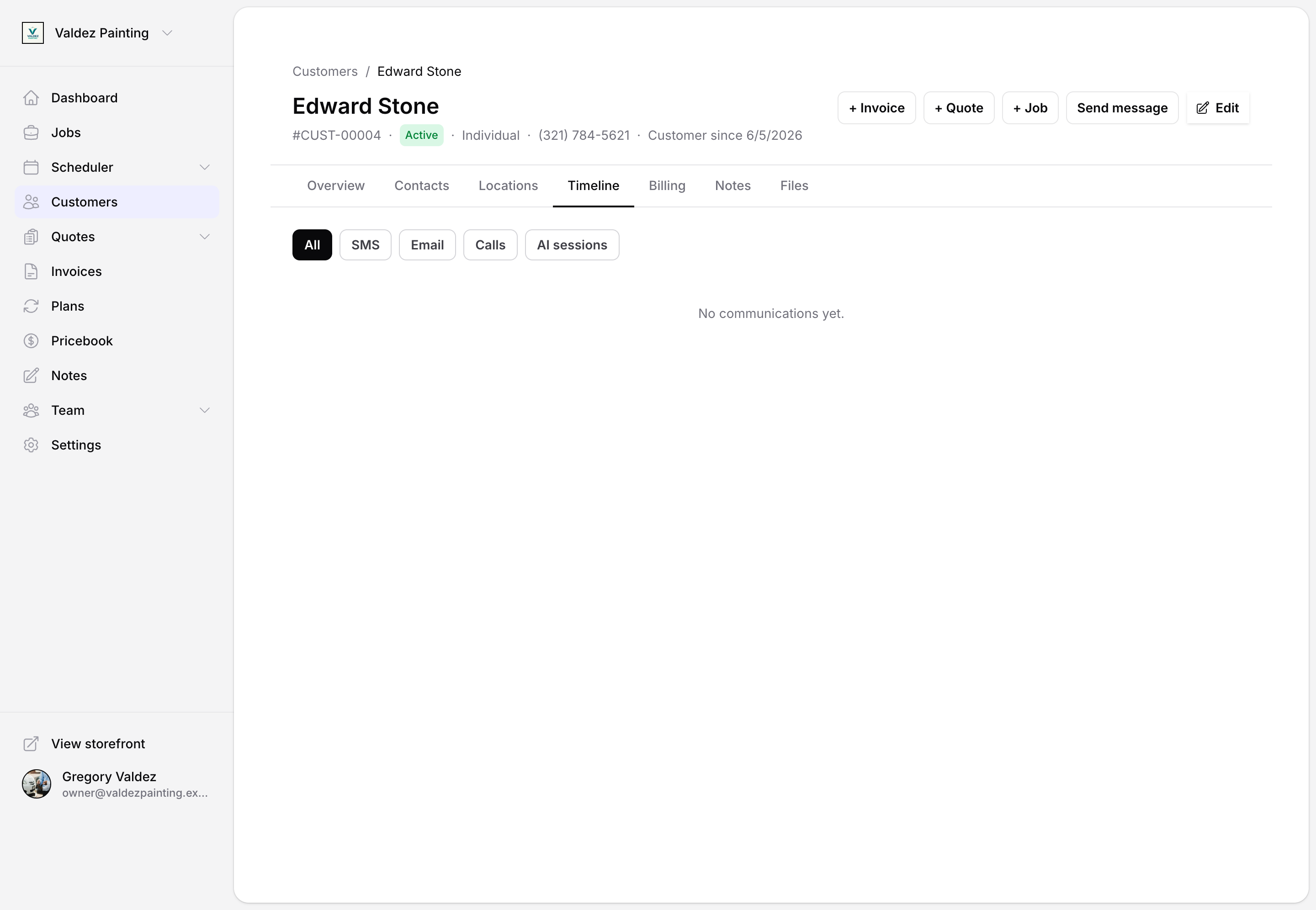
Select the Timeline tab on the customer page to see their communication history.
Filter by channel
Use the chips at the top — All, SMS, Email, Calls, AI sessions — to narrow the timeline to one channel.
Sending a one-off message
Free-form texts and emails are sent through the API, not from a screen in the app. If you are not a developer, ask your developer to set this up.
When sending via the API, you provide the customer, the message body, and a unique reference key (so Zoop knows not to send the same message twice). Zoop works out who to contact from the customer's record — the primary contact by default, or a different contact if you specify one.
SMS requires a phone number with SMS enabled. If the contact has no phone on file, or the number is not marked as SMS-enabled, Zoop will not send the message. Email requires an email address on the contact. You can add or update either from the Customers page first.
The message timeline
Every message tied to a customer — sent by you, received from them, or triggered automatically by Zoop — appears in the timeline in chronological order. Each entry shows:
- Channel (SMS or email)
- Direction (sent or received)
- Date and time
- A preview of the message body
- Delivery status
Outbound messages move through these statuses: queued → sending → delivered. If delivery fails, the status shows failed along with a reason. Replies from customers show as received.
Receiving replies
When a customer replies to an SMS or email, Zoop matches the incoming message back to their record using their phone number or email address. The reply appears in the timeline automatically.
What if Zoop can't match a reply to a customer? If the phone number or email address that replied is not saved on any customer record in Zoop, the message is held safely on Zoop's side so nothing is lost. There is no in-app screen to view these unmatched messages right now — contact Zoop support to retrieve one. Once you add that phone number or email to the right customer's contact record, any future replies from them will route correctly.
Automated messages
Zoop sends some messages on your behalf automatically, without you having to compose anything.
Invoice notifications
When you send an invoice to a customer, Zoop delivers it by SMS, email, or both. There's nothing to pick — sending an invoice is a single action, and Zoop sends to whichever channels the customer can receive: email if they have an email address, SMS if they have a phone number with SMS enabled. The message includes the invoice total and — if you have online payments connected — a direct link to pay. If you have offline payment instructions set up in your account settings, those are included too.
Payment receipts
After a payment is recorded on an invoice, Zoop automatically sends a receipt to the customer. The email receipt includes a line-item breakdown and a link to view the receipt online. The SMS receipt is a short confirmation with the amount paid and a link.
These automated receipts appear in the customer's timeline alongside everything else.
Automated invoice notifications and receipts need no setup to turn on. A receipt fires automatically the moment an invoice is marked paid, and both invoice notifications and receipts go out to whatever the customer can receive — their email, their SMS-enabled phone, or both. If a customer has neither on file, Zoop simply skips the send.
Linking a message to a job, invoice, or quote
A message can be tied to a specific job, invoice, or quote. When it is, the message shows up in that record's timeline as well as the customer's general timeline. Automated messages — like invoice notifications and receipts — are linked to their invoice automatically, so you do not need to do anything.
For messages sent through the API, you set the link by including the record type and ID in the request. See the API reference for details.
Messaging one contact out of several
If a customer has more than one contact on file (for example, a homeowner and their property manager), you can send to a specific contact by passing their contact ID in the API request. When you do not specify one, Zoop sends to the primary contact.
Things to know
- SMS length. Texts are capped at 1,600 characters. Keep them short — carriers split long texts into multiple segments, which can look odd on the receiving end.
- Numbers that can't receive texts. If a contact's phone number is not marked SMS-enabled in their record, Zoop will not send the text. Update the contact record first to fix this.
- No duplicate sends. Zoop tracks each send with a unique reference, so if you retry a failed action, the same message will not go out twice.
- Delivery updates. Zoop receives delivery confirmations automatically. The timeline updates on its own when a message is confirmed delivered or fails.