
Notes
Capture context on any job, customer, invoice, or quote — by text or photo. Pin what matters. Review every edit.
Notes are a place to write down anything that doesn't fit a form field: what the customer said on the phone, the part number you scrawled on the wall, a photo of the breaker panel before you touched it. Every note shows who wrote it and when, and it stays attached to the job, customer, invoice, or quote it belongs to.
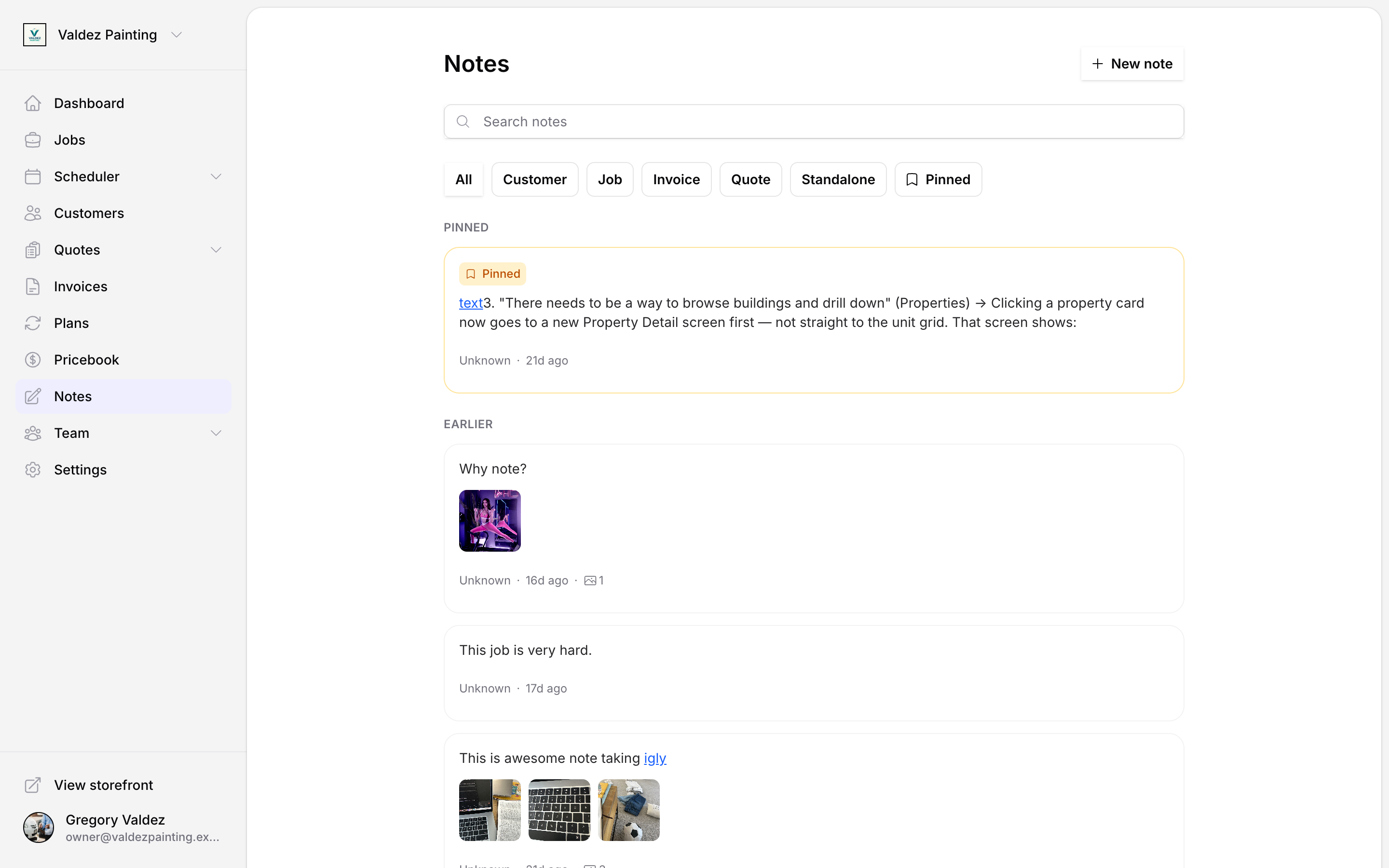
Where notes live
You can attach a note to a customer, job, invoice, or quote. You can also save a standalone note — one not linked to anything — from the Notes page.
To add a note while you're already on a record (say, inside a job), find the Notes panel on that page and select Add note. Zoop pre-fills the attachment for you, so you don't have to search for the job manually.
The top-level Notes page (in the main navigation) shows every note across your account in a single feed, grouped by day.
Add a note
Open the composer
From a job, customer, invoice, or quote detail page, select Add note.
From the top-level Notes page, select New note in the top-right corner.
Write the note
Type directly into the text area. Use the toolbar buttons to add bold, italic, bullet lists, or links — no special formatting knowledge needed.
Markdown formatting renders inline in a compact style — headings, lists, bold and italic, links, and inline code or code blocks all show the way you'd expect. Links to external sites open in a new tab.
Press Cmd+Enter (Mac) or Ctrl+Enter (Windows) to save without reaching for the button.
Attach to a record (optional)
If you opened the composer from inside a job, customer, invoice, or quote, the attachment is already filled in — you'll see a label at the top of the composer showing which record it's linked to.
If you opened the composer from the standalone Notes page, select the paperclip icon in the toolbar and search for the record you want. Select it from the list to link it.
To remove the attachment, select the label and it clears.
Pin the note (optional)
Select the bookmark icon to pin the note. Pinned notes appear in a dedicated section above the day-grouped feed so they stay visible.
Add photos (optional)
Select the + tile below the text area to attach photos. On mobile, your device's camera opens by default.
You can attach up to 6 photos per note. Zoop compresses images before upload to keep things fast on a spotty connection.
Save
Select Save note. The note appears in the feed immediately.
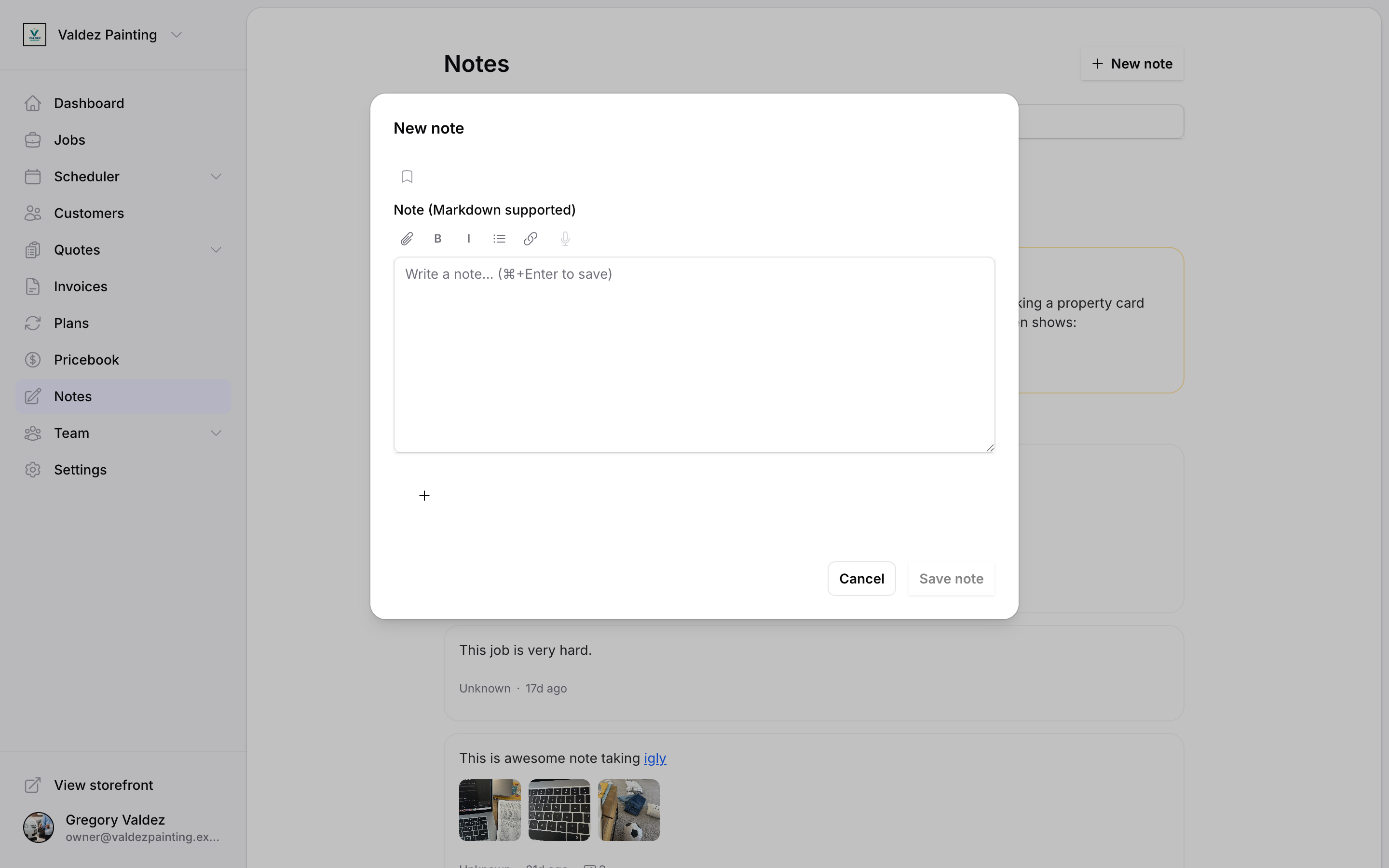
Photo attachments
Each note holds up to 6 photos. The composer shows a row of thumbnails below the text area — select any thumbnail to open the full-screen viewer.
In the notes feed, note cards show up to 3 thumbnails inline. If there are more, a tile shows the remaining count — tap it to open the viewer starting from that photo.
Your account has a shared photo storage limit. Zoop will warn you when you're getting close. If an upload fails with a storage error, delete unused photos from older notes to free up space.
Search and filter notes
The search bar at the top of the Notes page searches all your notes as you type. If there are too many results to show, type more to narrow them down.
The filter buttons below the search bar let you show only certain types of notes:
| Chip | What it shows |
|---|---|
| All | Every note (default) |
| Customer | Notes attached to customers |
| Job | Notes attached to jobs |
| Invoice | Notes attached to invoices |
| Quote | Notes attached to quotes |
| Standalone | Notes not attached to any record |
| Pinned | Only pinned notes |
You can select more than one filter at a time — for example, select Job and Invoice together to see notes on either type.
Pin and unpin a note
Pinned notes appear in a dedicated section at the top of the feed so they stay easy to find.
To pin or unpin one of your own notes, hover the note card and select the bookmark icon that appears. The same bookmark icon is also in the composer when you create or edit a note.
You can only pin notes you wrote yourself. The bookmark icon won't show on a teammate's note in your feed.
Edit a note
You can only edit notes you wrote yourself. Hover the note card and select the pencil icon to open it in the composer — your existing text, attachment, pin state, and photos are all loaded and ready to change. Edit and select Save note when you're done.
Every time you save an edit, Zoop keeps a record of the previous version. You can view and restore old versions in the version history panel (see below).
View and restore older versions
Open version history
Open the version history panel for the note.
version-history-panel.tsx) and its backend routes (/api/notes/[id]/versions, /api/notes/[id]/restore-version) all exist, but the panel is not rendered or triggered anywhere in the notes UI — not from the composer, the note card, or the feed. Confirm where (and whether) the trigger ships before publishing this step.Browse versions
The panel lists every version newest-first. Select a version row to expand it and see what changed — added text appears in green, removed text in red.
Restore a version
Select Restore beside the version you want. Confirm the prompt. The note goes back to that version's content, and Zoop records the restore as a new version entry so nothing is permanently lost.
If someone else edits the note after you opened the history panel, Zoop will block the restore and ask you to reload before trying again.
Delete a note
Hover the note card and select the delete (trash) icon. A confirmation dialog titled "Delete this note?" appears, noting "This can't be undone." — select Delete to remove it, or Cancel to back out. The note disappears from the feed right away. There is no in-app way to bring it back, so make sure before you confirm.
Any photos attached to the note are removed from storage 30 days after deletion — not immediately.
Notes inside a job, customer, invoice, or quote
When you're on a record's detail page, the Notes panel shows only the notes attached to that record — the search bar and filter buttons aren't shown there because you're already looking at a focused list.
Select Add note from the panel header to write a new note that's pre-attached to that record.
Draft recovery
If your browser closes or crashes while you're writing, Zoop saves your draft automatically. The next time you open the composer, a banner asks if you want to restore it or start fresh.