
Invoices
Create invoices from jobs or quotes and send them in a tap.
Invoices are how you ask for money. You can create one from scratch, from a completed job, or from an accepted quote. Once sent, your customer gets a payment link they can use to pay by card — or you can record cash, check, or any other offline payment yourself.
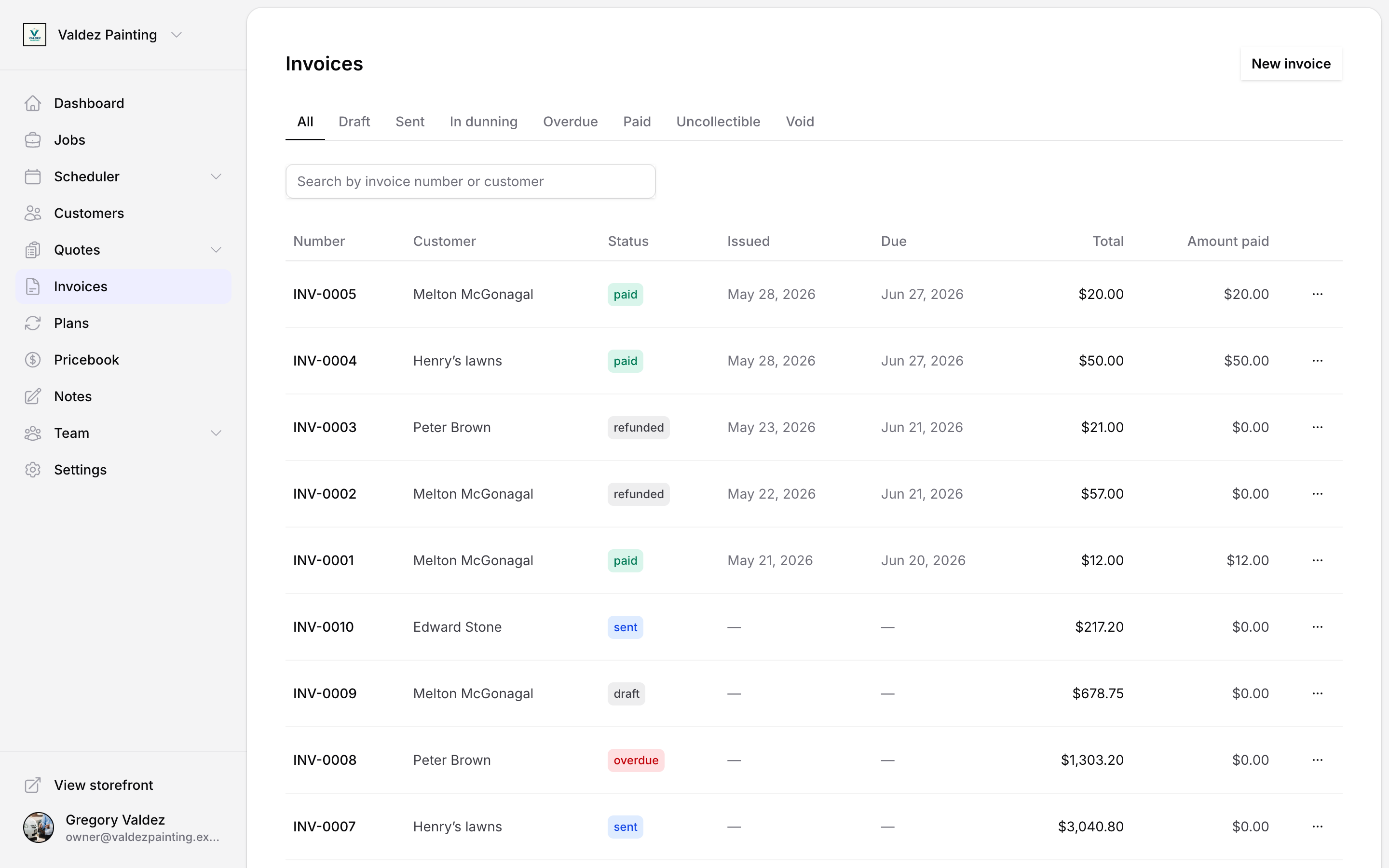
Invoice statuses
| Status | What it means |
|---|---|
| Draft | Created but not yet sent to the customer. |
| Sent | Sent to the customer with a payment link. |
| Overdue | The due date has passed and it is not yet paid. |
| Paid | Payment received in full. |
| Dunning | A card payment failed and Stripe is automatically retrying it. Nothing for you to do yet. |
| Uncollectible | Written off — stays on your books but is removed from the overdue list. |
| Void | Cancelled. History is preserved; collection stops. |
For recording and tracking payments, see Payments.
Create an invoice
Open the new invoice form
Go to Invoices and select New invoice.
Pick a customer
Start typing a name in the customer field and select from the list. You must link a customer before saving. If you started from a customer's detail page, the Customer picker is already filled in for you — you can still change it.
Set the issue and due dates
The issue date defaults to today. The due date defaults to 30 days out. Adjust both to match your terms.
Add line items
Select Add line for each service or product. For each line, enter:
- Description — what the customer is paying for.
- Qty — quantity or hours.
- Unit price — price per unit.
- Taxable — whether tax applies to this line.
- Tax rate — leave as "Use default" to apply the invoice-level default, or pick a specific rate.
The subtotal, tax, and total update as you type.
Set a default tax rate (optional)
Pick a tax rate from the Default tax rate dropdown. Any taxable line that does not have its own rate set will use this rate. Leave it blank for zero-tax invoices.
Add notes (optional)
Notes are internal — they do not appear on the customer-facing invoice.
Save the draft
Select Save draft. The invoice is saved with status Draft and assigned an invoice number automatically.
Open the job
Go to Jobs and open the job you want to invoice.
Create invoice from the job
Select Create invoice on the job detail page.
Zoop fills in the customer and total from the job automatically. You cannot add separate line items this way — the job's amount becomes the invoice total.
Review and send
The new invoice opens in draft. Adjust dates or notes if needed, then send it.
Open the quote
Go to Quotes and open the accepted quote.
Create invoice from the quote
Select Create invoice on the quote detail page.
Zoop fills in the customer and total from the quote automatically. As with the job path, line items are not carried over separately.
Review and send
Adjust dates if needed, then send.
Send an invoice
Sending delivers the invoice to your customer and generates a payment link they can use to pay by card online.
Open the invoice
Go to Invoices and select the invoice number.
Select Send
In the action bar at the bottom of the page, select Send. Zoop delivers the invoice to the customer and moves the status to Sent.
Sending is the only action that creates the public payment link. If you mark an invoice as "sent" manually (via the row menu on the list page) without using the Send button, no link is generated and no notification goes to the customer.
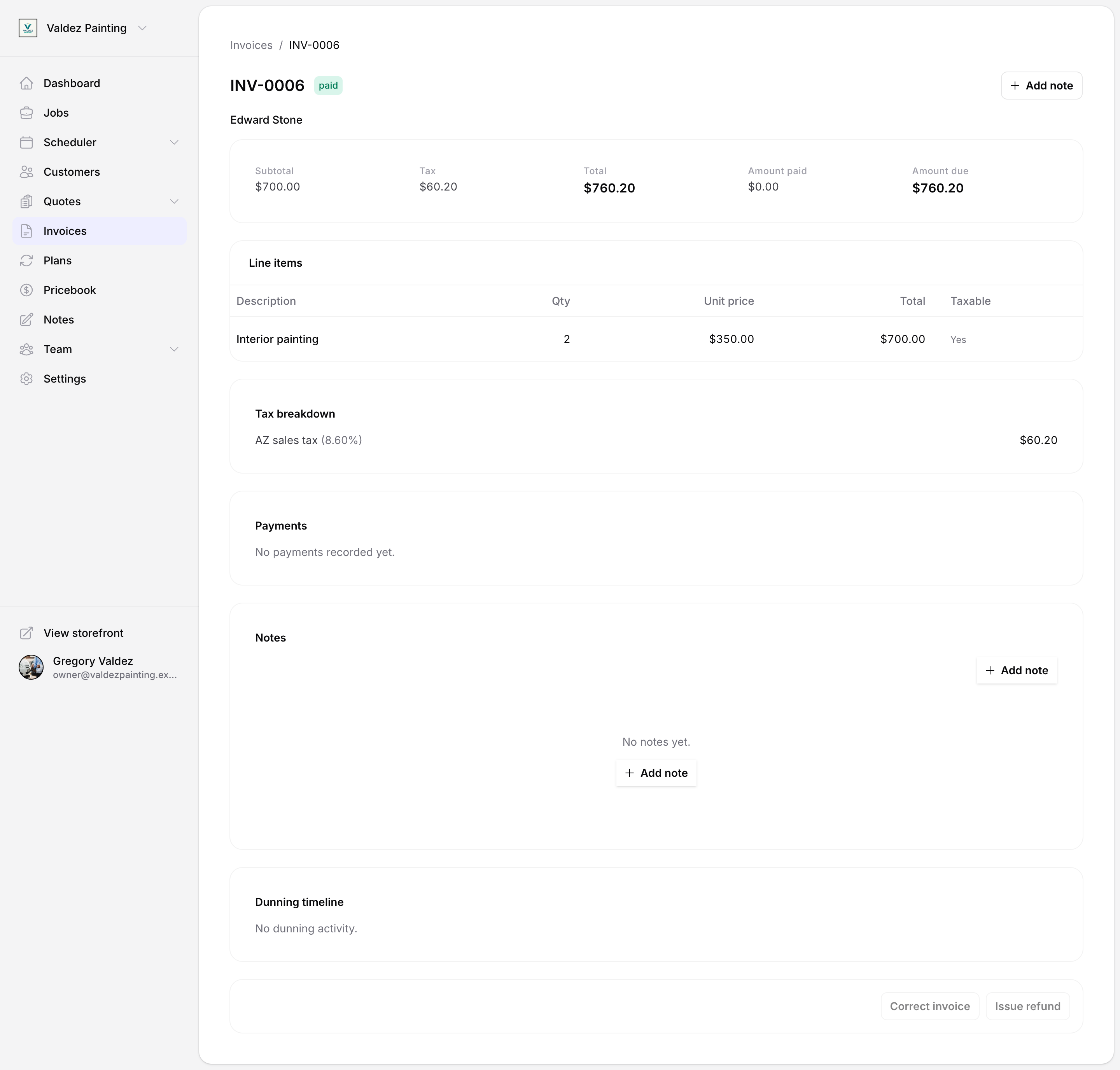
Share the payment link
After an invoice is sent, you can copy the payment link directly.
Select Share with customer
On the invoice detail page, select Share with customer. A dialog shows the payment link and a QR code.
Copy and send
Select Copy link and paste it into a text, email, or chat. The link works until the invoice is paid.
Send a reminder
For sent, overdue, or dunning invoices, select Send reminder on the invoice detail page. Zoop re-delivers the payment link to the customer.
Record an offline payment
If a customer pays by cash, check, Zelle, Venmo, wire, or any other method outside Zoop, log it so your books stay accurate.
Open the invoice
Select the invoice from the list.
Select Record payment
In the action bar, select Record payment.
Fill in the details
- Amount — defaults to the outstanding balance.
- Method — cash, check, Zelle, Venmo, wire, or other.
- Reference (optional) — check number, transaction ID, or anything useful.
- Paid on — the date payment was received.
- Notes (optional) — any internal notes about the payment.
Save
Select Record payment. The payment appears in the invoice's payment history and the status updates automatically.
Edit a draft invoice
You can edit any invoice while it is still in Draft status. Once an invoice is sent, the full editor is locked.
Open the draft
Select the draft invoice from the list, or use the row menu and select Edit.
Select Edit
On the invoice detail page, select Edit in the action bar.
Make your changes
Update the total, issue date, due date, or notes. Select Save changes when done.
To edit line items on a draft, go to Invoices, open the draft, then select Edit from the row menu to open the full line-item editor.
Only draft invoices can have their amounts, line items, and dates edited. Sent and paid invoices cannot be changed through the standard editor.
Void an invoice
Voiding stops collection on an invoice. This is the right move when an invoice was sent in error or the job was cancelled. Past payments and history remain on record. You cannot undo a void.
Open the invoice
Select it from the list.
Select Void
In the action bar, select Void. Confirm in the dialog.
You can also void from the row menu on the invoice list — select the three-dot menu next to any invoice that is not yet paid or already voided, and select Void.
Mark as uncollectible
If a customer is not going to pay and you want to write it off, mark the invoice uncollectible. It disappears from your overdue list but stays on your books so you have a record at tax time.
On the invoice detail page, select Mark uncollectible from the action bar. This option appears on overdue and dunning invoices.
Find an invoice
At the top of the invoices list, select a status tab to filter: Draft, Sent, In dunning, Overdue, Paid, Uncollectible, or Void. Use the search bar to find an invoice by number or customer name.
Add notes to an invoice
Each invoice has a notes section at the bottom of its detail page. Notes are internal — add context, follow-up reminders, or anything your team needs to know. They do not appear on the customer-facing payment page.
See Notes for full details on how notes work across Zoop.