
Get set up
Sign in, set up your business, and connect payments so you can start booking jobs.
This page walks you through everything you need to do before your first job: create an account, tell Zoop about your business, and connect payments. The whole thing takes around ten minutes.
New owner? Zoop shows a setup checklist right on your dashboard that mirrors the steps below — add your business details, add your first customer, and connect Stripe. Work through it here or from the dashboard; either way it updates itself as you go, reading your real account. See The setup checklist on your dashboard below.
Create your account
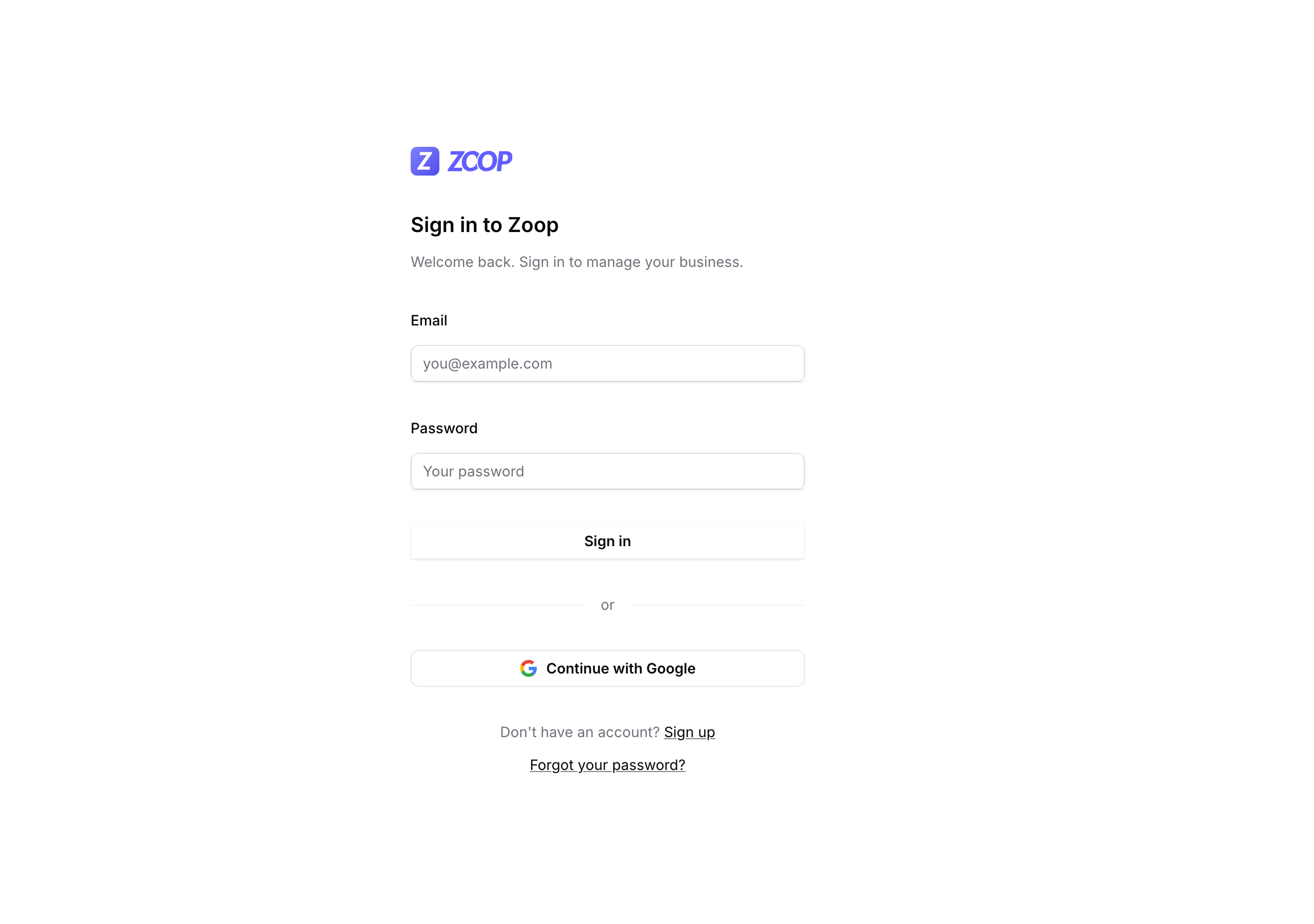
Go to app.zoop.pro and choose how you want to sign in.
Select Continue with Google and pick your Google account. No password needed — Google signs you in automatically.
Select Sign up from the sign-in page, enter your email address and a password, then select Create account. Zoop sends you a confirmation email — open it and select the link to activate your account.
Name your company and pick your trade
After signing in for the first time, Zoop asks you two quick things:
-
Company name — what your business is called (for example, "Mike's Plumbing"). You can change this any time in Settings.
-
What kind of work do you do? — pick the trade that fits best: plumbing, HVAC, electrical, landscaping, cleaning, roofing, general, garage door, pest control, or other. This sets defaults throughout Zoop.
Select Get started when you're done.
TODO(screenshot): onboarding screen showing the company name field and trade picker
If someone invited you to join an existing Zoop account, you'll see a pending invitation here. Accept it instead of creating a new company.
Fill in your business profile
Open Settings (bottom of the left sidebar) and select the Business info tab. Fill in:
-
Company logo — shown on your storefront, invoices, and customer messages.
-
Tagline — a short description of your business (up to 255 characters).
-
Trade types — you can select more than one if you do multiple kinds of work.
-
Contact information — business phone, email, and website.
-
Business address — your base location. Start typing and select from the suggestions.
-
Brand color — used on your customer-facing storefront.
Select Save changes when you're done.
TODO(screenshot): Business info tab in Settings showing logo upload, company name, tagline, trade types, brand color, contact information, and address fields (recapture once the demo account's tagline/website fields are tidied).
Set your service area and hours
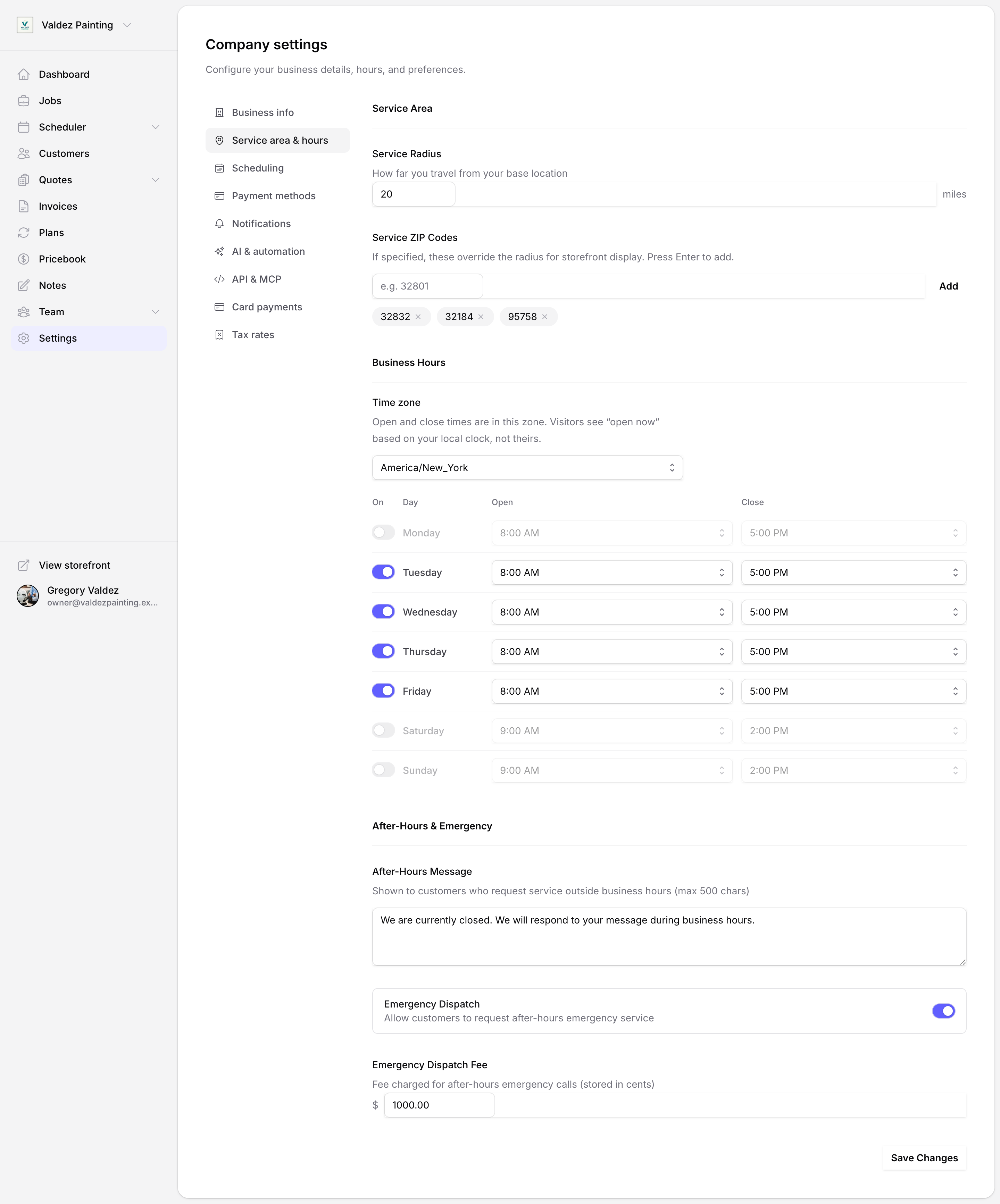
In Settings, select the Service area & hours tab.
Service area
-
Service radius — how far you travel from your base location, in miles (1–200).
-
Service ZIP codes — optional. Type a ZIP code and press Enter to add it. When you add ZIP codes, Zoop shows those instead of the radius on your customer-facing storefront.
Business hours
-
Set your time zone first. Zoop shows your open and close times to customers in your time zone.
-
Toggle each day on or off, then set your open and close times. Times go from 6:00 AM to 10:00 PM in 30-minute steps.
After-hours and emergency
-
After-hours message — what customers see when they request service outside your hours (up to 500 characters).
-
Emergency dispatch — turn this on if you want to take after-hours emergency calls. You can set an emergency dispatch fee once it's enabled.
Select Save changes when you're done.
Connect payments
Zoop uses Stripe to process card payments. Stripe is a payment service that holds your money until it's deposited into your bank account — you set it up once, and Zoop handles the rest.
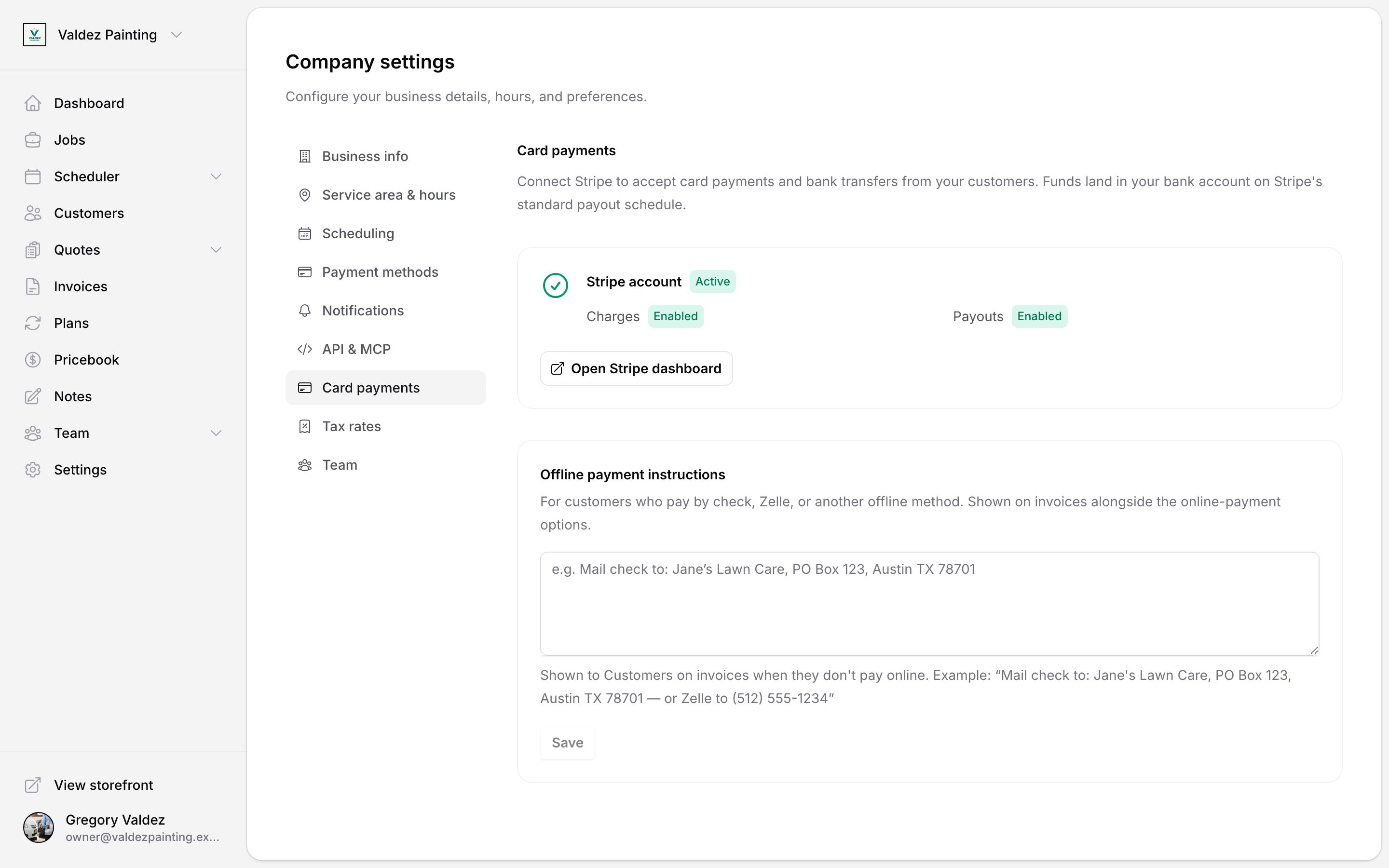
In Settings, select Card payments from the left nav.
Select Set up payments. Zoop opens a Stripe form — fill in your business details and bank account information. This takes around five minutes.
When you're done, come back to Zoop. Your payment status updates automatically. You'll see a green Active badge once your account is fully enabled.
Until Stripe is active, Zoop shows a slim amber banner across your other pages — "Connect Stripe to start getting paid by card" — that brings you right back here. See The setup checklist on your dashboard below for how it works.
If you see "Action needed" or "Setup in progress," Stripe still needs more information from you. Select Finish on Stripe to continue. If you've already finished on Stripe but the status hasn't changed, select Refresh status.
Offline payment instructions
If some customers pay by check, Zelle, or another method, add instructions in the Offline payment instructions box on the same page. This text shows up on your invoices alongside the online payment link.
For more on how payments work — including how customers pay invoices and how payouts reach your bank — see Payments.
The setup checklist on your dashboard
You don't have to keep this page open to track your progress. Zoop puts the same setup steps right on your owner dashboard.
The first time you sign in as an owner, Zoop shows a one-time "Welcome to Zoop" popup: "Three quick things and you're ready to get paid: add your business details, add your first customer, and connect Stripe. We'll keep the checklist on your dashboard." Select Let's go to dismiss it.
TODO(screenshot): the "Welcome to Zoop" dialog with the "Let's go" button.
After that, a setup checklist card sits at the top of your dashboard, headed Finish setting up —** of 3 done** — it starts at "0 of 3". The three steps:
| Step | Sub-line | Where it takes you, and when it's done |
|---|---|---|
| Add your business details | "So your invoices and quotes look official." | Opens Settings to fill in your business info. Done once you've added a phone or email and a complete mailing address. |
| Add your first customer | "Then you can send a quote or invoice." | Opens your customers list. Done once you have at least one customer. |
| Connect Stripe to get paid | "Let customers pay by card — takes a few minutes." | Opens Card payments settings. Done once card payments are active. |
The first unfinished step shows a Start button; the others show Open. You never tick anything off by hand — Zoop reads your real account and checks each step automatically as you finish it.
Closing the card with its X dismisses the whole checklist — the card, the welcome popup, and the Stripe banner (below) — for good, on every device.
TODO(screenshot): the dashboard setup checklist card headed "Finish setting up — 0 of 3 done".
The "connect Stripe" banner
Once your business details and first customer are done but Stripe still isn't, a slim amber banner follows you across Zoop: "Connect Stripe to start getting paid by card." Select it to open Card payments.
Its X also dismisses the entire checklist — so if you want to take card payments, connect Stripe rather than dismissing the banner.
TODO(screenshot): the amber "Connect Stripe to start getting paid by card" banner.
What's next
Once you're set up, you're ready to add customers and start booking jobs.
Hit a snag while setting up? Email support@zoop.pro — we reply fast, and we're happy to hop on a call or screenshare. More at Get help.