
Getting paid
Take card payments, send payment links, and record cash or checks.
This page explains how to collect money through Zoop — whether that is a card payment online or cash in hand.
Zoop handles two kinds of payments: online card payments through Stripe, and manual payments (cash, check, Zelle, Venmo, wire, or anything else) that you record yourself. You can use either or both. Every payment, no matter how it was collected, is recorded on the invoice so you always know what is owed and what has been paid.
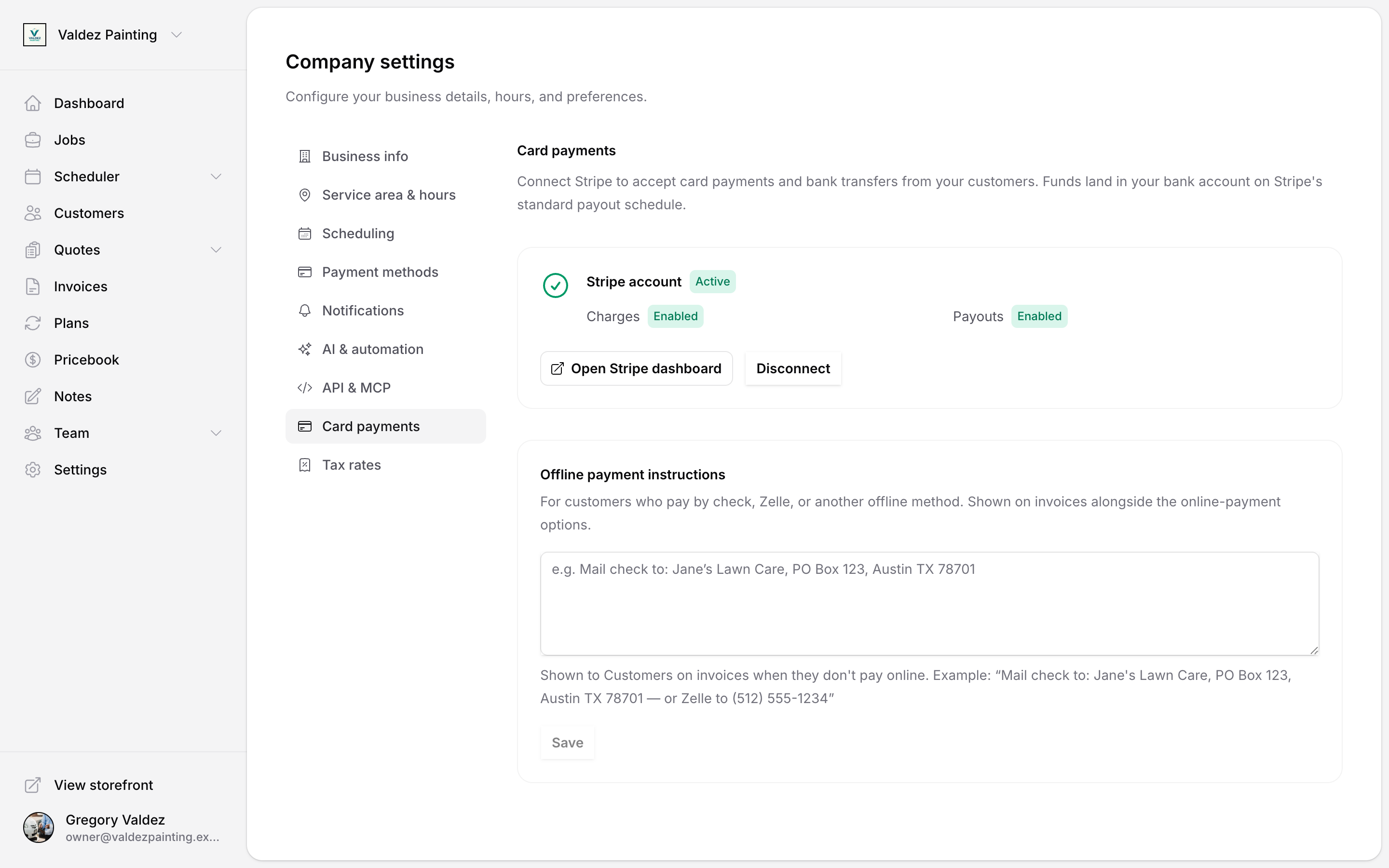
TODO(screenshot): The Settings → Payments page showing the "Set up payments" state and the active Stripe card side by side.
Connect Stripe to accept card payments
To accept credit and debit cards, you need to connect a Stripe account. Stripe moves the money; Zoop keeps the record. If you only take cash or checks, you can skip this section.
Only the account owner can connect Stripe and manage payment settings. Other team roles do not see Settings → Payments.
Open Settings → Payments
Go to Settings in the sidebar, then select Payments.
Start the setup
Select Set up payments. Zoop opens Stripe's onboarding flow in the same window.
Complete the Stripe checklist
Stripe asks for four things: your identity, your business details, your bank account (where your payouts land), and acceptance of Stripe's terms. Take about 5 minutes to work through each item. A checklist on the Settings → Payments page shows what is still outstanding.
If Stripe is reviewing your information, the checklist shows "In review" — nothing more is needed from you at that point. Just wait.
Return to Zoop
After you finish on Stripe, you are redirected back to Zoop. The settings page shows Active with charges and payouts both enabled when setup is complete.
If the status looks stale, select Refresh status to pull the latest state from Stripe.
If your account needs attention
If Stripe pauses your account, Settings → Payments shows an Action needed banner. Select Finish on Stripe to resolve the outstanding items. The page updates automatically once Stripe processes the change.
Open your Stripe dashboard
From Settings → Payments, select Open Stripe dashboard to view payouts, disputes, and transaction history directly in Stripe.
Disconnect Stripe
Disconnecting Stripe from within Zoop isn't available right now. The Disconnect control is hidden while a safe disconnect-and-reconnect flow is built — disconnecting mid-stream would block charges on in-flight invoices and stop refunds. Either way, your invoices, payments, and customer records always stay in Zoop and are never deleted.
Send a payment link to your customer
Once Stripe is connected and you have sent an invoice, you can share a link so your customer can pay by card online. They do not need a Zoop account.
Open the invoice
Go to Invoices and open a sent or overdue invoice.
Share with customer
Select Share with customer in the action footer. A dialog shows the payment link and a QR code.
Copy or scan
Copy the link and paste it into a text or email, or let the customer scan the QR code directly. The link stays active until the invoice is paid.
TODO(screenshot): The "Share invoice" dialog showing the payment link field, copy button, and QR code.
Record a cash, check, or other manual payment
Use this when you collect payment outside of Stripe — cash on the job, a check in the mail, a Zelle transfer, anything. You do not need Stripe connected to record manual payments.
Open the invoice
Open the sent or overdue invoice you want to mark.
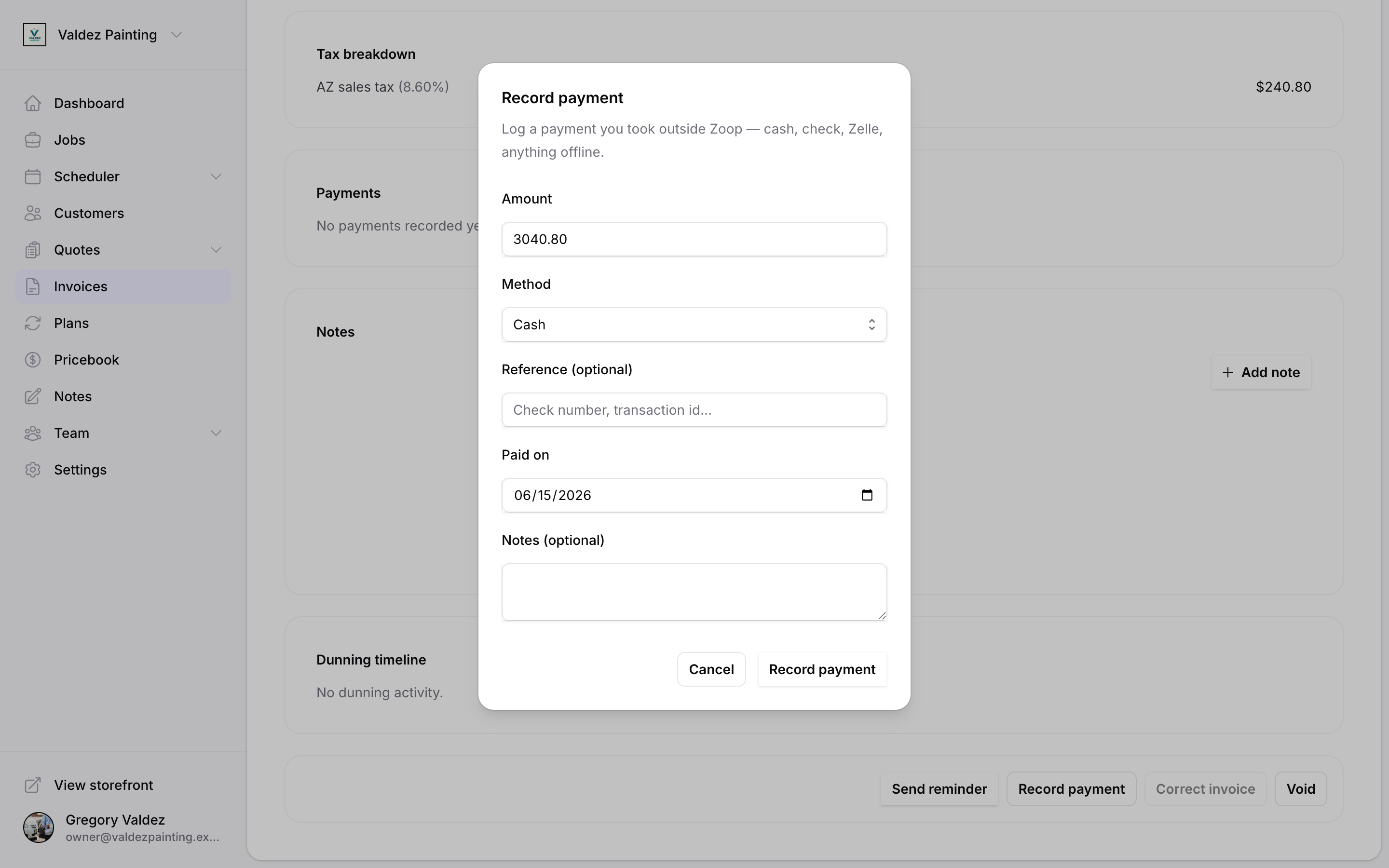
Select Record payment
Select Record payment in the action footer.
Fill in the details
Enter the amount, the payment method, and the date you received it. You can also add an optional reference number (such as a check number) and any notes. The amount field defaults to whatever is still owed on the invoice.
Supported methods: cash, check, Zelle, Venmo, wire, other.
Save
Select Record payment. The payment appears in the Payments section of the invoice and reduces the amount due.
You can record more than one manual payment on the same invoice. For example, record a partial cash payment now, then record a check for the rest when it arrives.
Add check or bank transfer instructions to invoices
If some customers pay by check or bank transfer, you can add written instructions that appear on every invoice. Your customer sees them when they open the invoice, next to the online payment option.
Open Settings → Payments
Go to Settings in the sidebar, then select Payments. The offline payment instructions section appears whether or not Stripe is connected.
Enter your instructions
Type what your customers should do — for example, a mailing address for checks, or a Zelle phone number.
Save
Select Save. The instructions appear on the customer-facing invoice view when they do not pay online.
Issue a refund
Refunds apply to Stripe card payments only. You can refund the full amount or a partial amount, up to what was originally charged. The money goes back to the card your customer used — you do not handle it directly.
Open the paid invoice
Open an invoice with status paid or partially refunded.
Select Issue refund
Select Issue refund in the action footer.
Set the amount and reason
Enter the refund amount (up to the refundable balance). Pick a reason from the dropdown: customer requested, duplicate charge, or fraudulent. Add an optional note if you need one.
Notify the customer (optional)
The Notify customer toggle is on by default. Zoop emails your customer a refund confirmation and an updated receipt. Turn the toggle off if you want to handle the communication yourself.
Confirm
Select Issue refund. The refund goes back to the original card. Most banks post it within a few business days, though timing varies.
Refunds only apply to Stripe card payments. If you need to undo a manually recorded payment (cash, check, etc.), open the invoice, find the payment in the Payments section, and delete it there. Then update the invoice amount as needed.
TODO(screenshot): The "Issue a refund" dialog with the amount, reason, and notify toggle.
Retry a failed charge using a saved card
When a customer saves a card through the customer portal or storefront, Zoop stores it so you can charge it again later. If a recurring charge fails, the invoice status changes to dunning — that means Zoop is waiting to retry the charge automatically, but you can also trigger a retry right now.
Open the dunning invoice
Go to Invoices and open an invoice with the status dunning.
Select Retry charge now
Select Retry charge now in the action footer. This button only appears when the customer has a saved card and Stripe is connected.
Pick the card and confirm
Choose which saved card to charge. Select Retry charge to attempt the payment immediately.
See recurring billing for how dunning and automatic retry schedules work.
Tap-to-pay
TODO(verify): Tap-to-pay is implemented in the Stripe payment processor (createTerminalLocation, createReader, processInPersonPayment in src/lib/payments/stripe/stripe-connect-processor.ts, and a tap_to_pay capability flag), but nothing in the app calls it — no route, server action, or component invokes the reader methods, no screen reads getCapabilities(), and there are no tap-to-pay UI labels. The backend exists but is not wired to any user-facing surface. Confirm with the product team whether tap-to-pay has shipped to users before documenting it.
Related pages
- Invoices — create and send invoices
- Recurring billing — set up automatic charges on a schedule
- Customer portal — where customers save cards and view invoices
- Settings — account-level configuration including Stripe