
Dispatch & routes
Assign jobs to your team and keep every route on time.
This page covers how to assign jobs to your team and manage the day's routes. It explains the dispatch board (for owners and office managers), the My day view (for everyone), and how Zoop flags jobs that are at risk of running late.
Zoop gives you two route views depending on your role. Owners and office managers see the dispatch board — a column for every team member plus an unassigned queue. Technicians land on My day — a personal stop list for the current date. Both views show a live map and flag stops that are at risk of running late.
The dispatch board
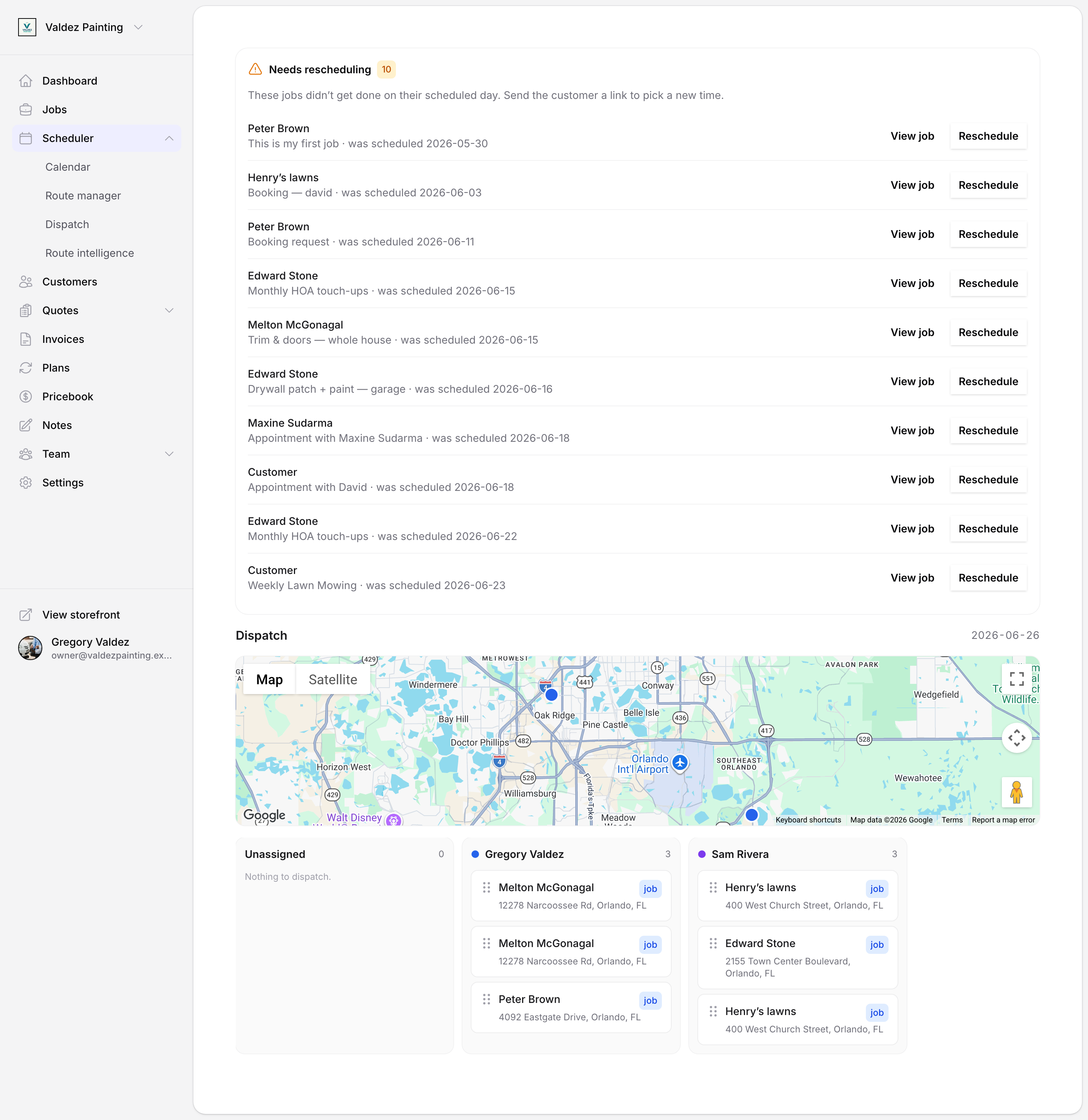
The dispatch board is the command center for assigning and rearranging the day's work. Open it from the sidebar under Scheduler → Dispatch.
Only owners and office-role members can reach the dispatch board. Technicians are redirected to their own My day view when they navigate to Route.
What you see
The board scrolls horizontally — one column per team member, with an Unassigned column pinned on the left. A map sits above the columns and plots every stop with a colored pin. Each member's pins share the same color as the dot in their column header, so you can match stops to people at a glance.
- Unassigned column — jobs scheduled for today that have no assignee yet. Each card shows the customer name, job title, and address.
- Member columns — one per active team member, showing their ordered list of stops for the day. Each stop card shows the customer name, address, and a badge for the stop type (job, event, or ad-hoc).
- Likely late badge — a red "Likely late" marker appears on any stop where the projected arrival is past the customer's promised window. See At-risk warnings below.
Assigning jobs
Drag any card from one column to another to assign or reassign it. Use the grab handle on the left edge of the card.
Find the job in the unassigned column
Unassigned jobs appear in the left rail with an amber "unassigned" badge.
Drag it to a member column
Pick up the card by its drag handle and drop it into the target technician's column. The column highlights when your card is over a valid drop zone.
Reassign or unassign
Drag a stop from one member column to another to reassign it. Drag it back to the Unassigned column to remove the assignment.
Reordering stops
Drag stops up or down within the same member column to change the order in which that technician visits them. Drop order is saved immediately.
Browsing other dates
The board defaults to today. To view a different date, add a ?date=YYYY-MM-DD query parameter to the URL in your browser's address bar — for example, append ?date=2026-06-20 to see that day's board.
The missed-jobs tray (described below) always shows today's missed jobs, regardless of which date you're viewing.
Missed jobs
When jobs pass their scheduled day without being completed, they appear above the board in a Needs rescheduling tray.
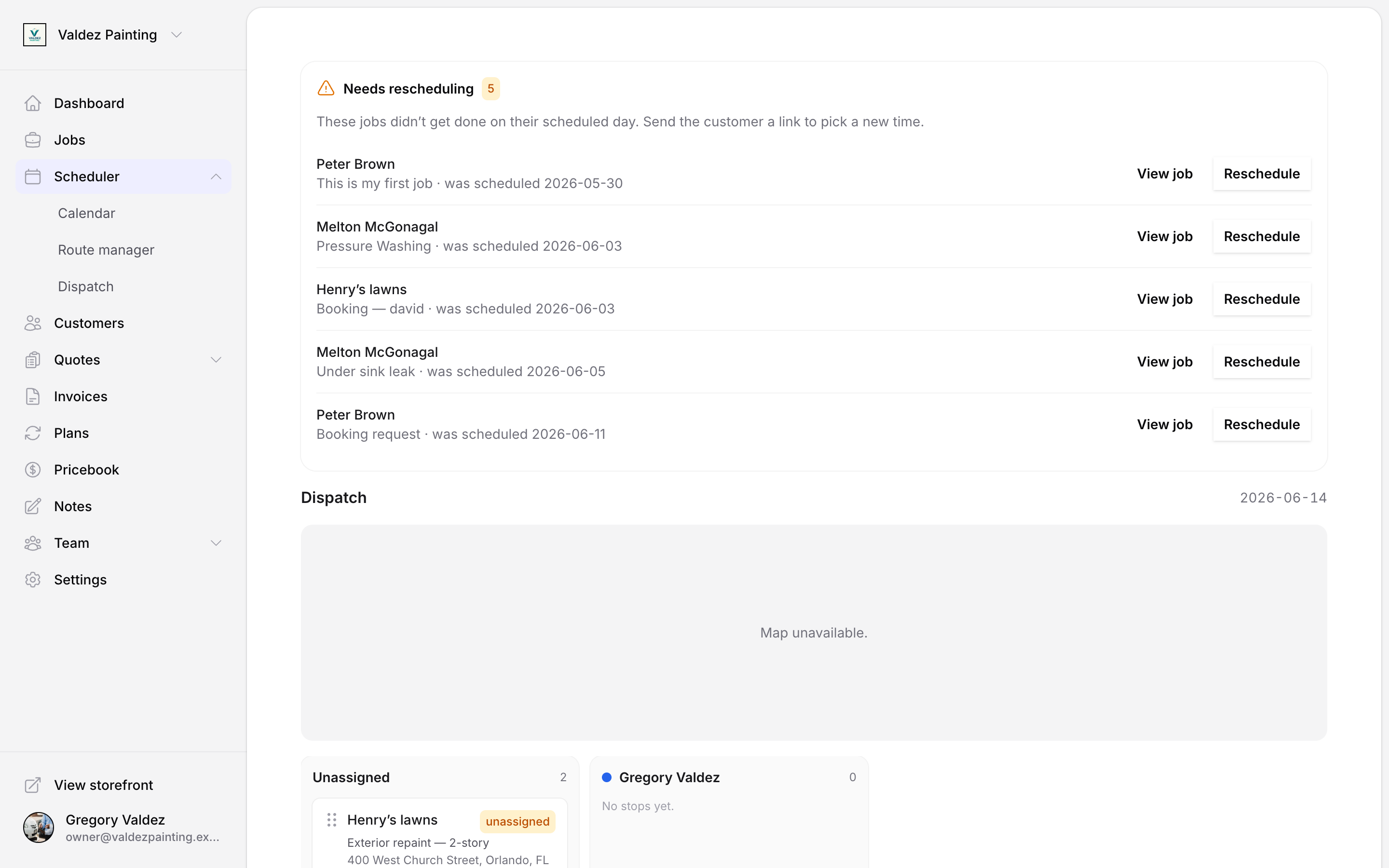
Each row shows the customer name, job title, and the date the job was originally scheduled. From here you can:
- View job — opens the full job detail page.
- Reschedule — generates a single-use link and copies it to your clipboard. Send it to the customer so they can pick a new time.
Clicking Reschedule only gives you a link to share with your customer — it does not move or reassign the job. You still need to update the job manually once the customer picks a new time.
My day
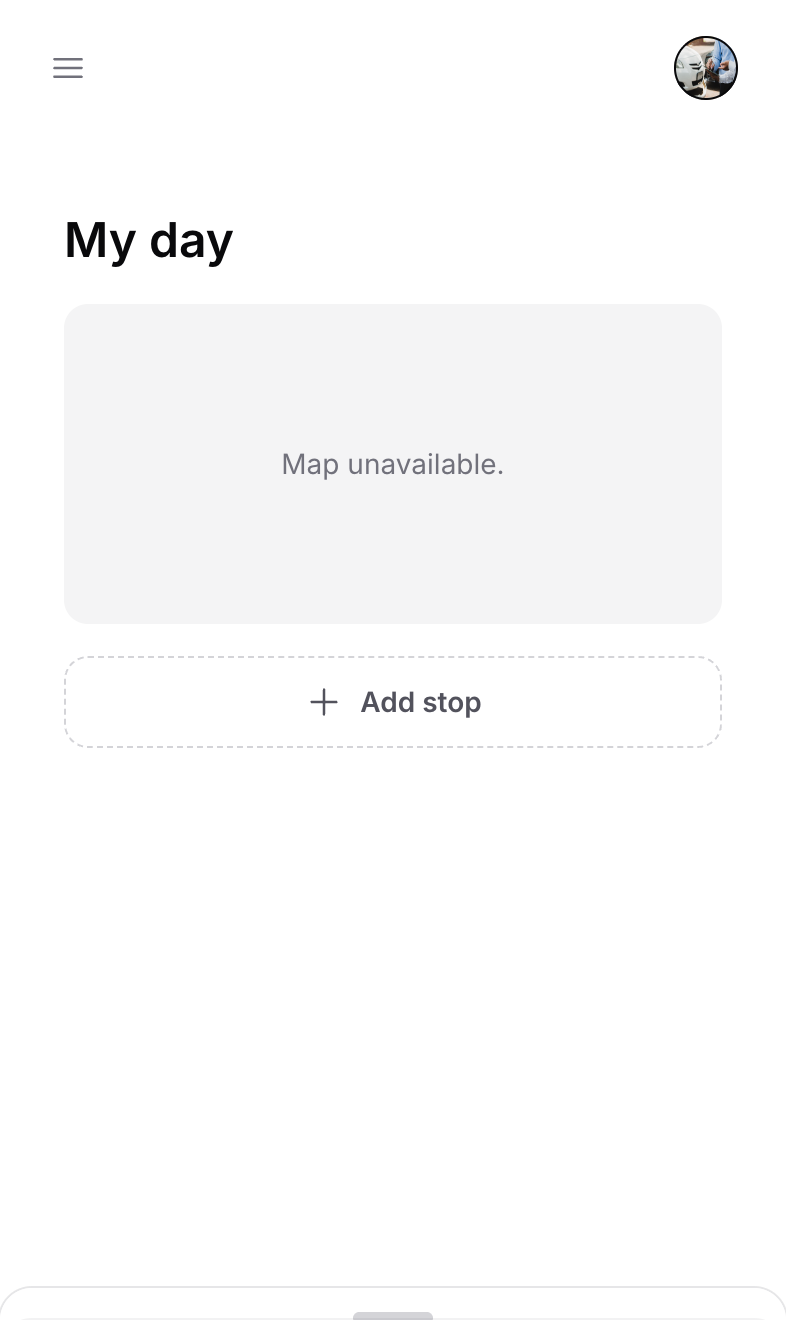
Every team member — including owners — has a personal My day view. Open it from the sidebar at Scheduler → Route manager. It shows your assigned stops for today in order, with a map above and a draggable list below.
Your stop list
Each stop card shows the customer name, address, and stop type. Tap a card to expand it for actions. Drag the handle on the left to reorder stops — the new order is saved as you go.
Adding a stop
Tap Add stop at the bottom of the list to add an unplanned visit.
Search for any address using the autocomplete field. The stop is added as an ad-hoc entry at the end of your list.
Any of today's scheduled calendar events that are not already on your route appear here. Tap one to add it.
Notifying a customer
If you are running late, tap a stop card and choose Notify client. Zoop suggests whether to send a heads-up or ask to reschedule, based on how your arrival time compares to what you promised the customer. You can change the reason (traffic, rain, running long, route change), edit the message, and choose to send by text or email before tapping Send.
Rescheduling from My day
Tap a stop card and choose Reschedule to generate a single-use link your customer can use to pick a new time. The link appears in a read-only field — copy it or tap Send to customer to send it directly via text or email.
At-risk warnings
Zoop monitors each stop and marks it Likely late when the projected arrival time would miss the time window you promised the customer.
The "Likely late" badge appears on:
- stop cards on the dispatch board, so you can spot problems across the whole team at a glance,
- stop cards in a technician's My day list.
The badge only appears on jobs with a fixed, hard-deadline time window. Jobs without a promised window, or flexible jobs (same-day or multi-day), show no marker even if they run behind.
You don't have to do anything to keep it current. Zoop automatically recalculates projected arrival times every 15 minutes and updates the badge as the day unfolds.
Route intelligence
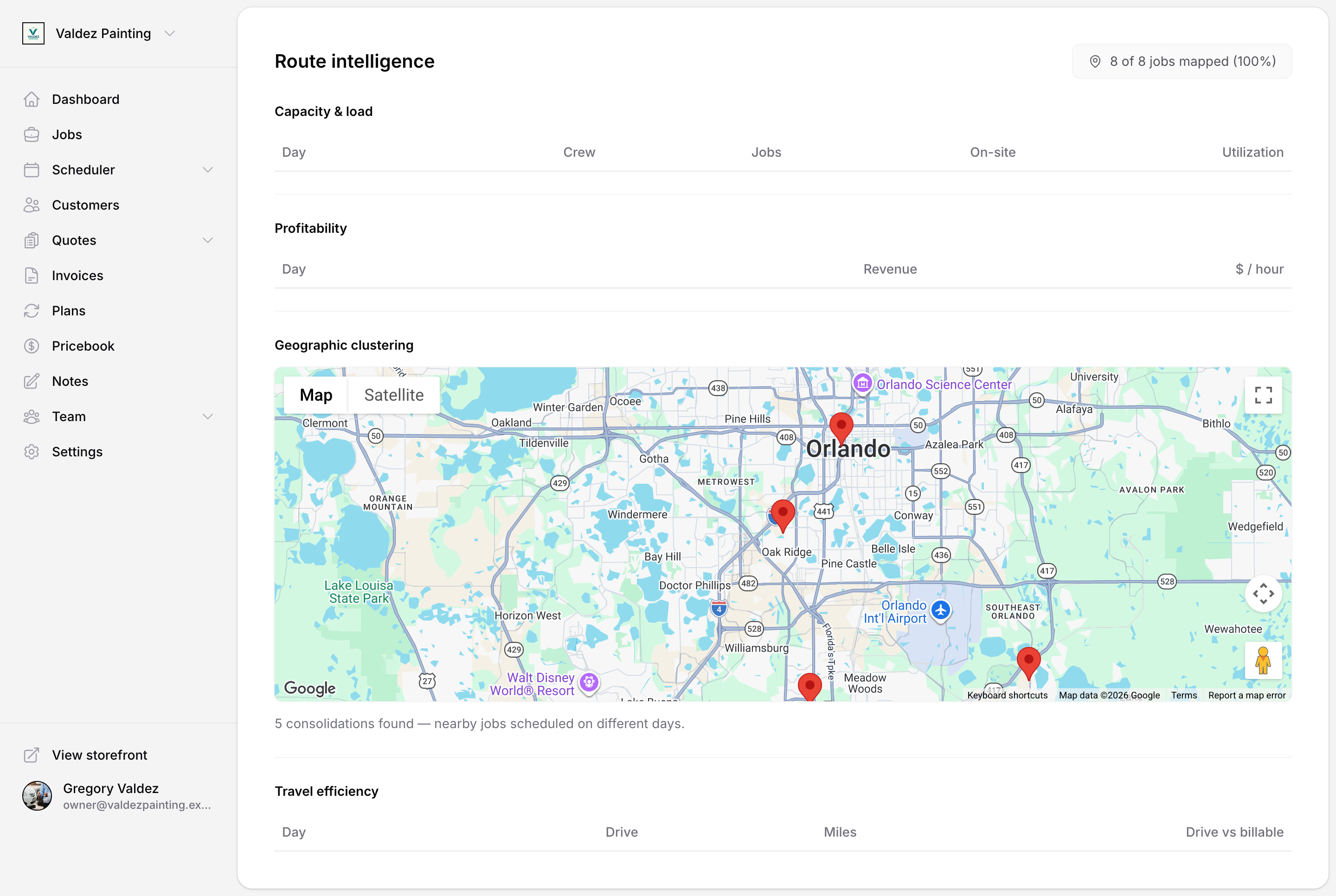
The Route intelligence page gives owners and office managers a weekly view of how efficiently the team's routes are running. It covers the current week and requires operational-reports access.
Open it from the left sidebar under Scheduler → Route intelligence, or from the Route intelligence card on your Dashboard. It's available to owners and office managers.
Capacity & load
A table showing, for each day of the week:
| Column | What it means |
|---|---|
| Day | The calendar date |
| Crew | Number of team members with stops that day |
| Jobs | Total jobs on the route |
| On-site | Total hours spent at job sites |
| Utilization | On-site hours as a share of an 8-hour workday — green when healthy, amber when underbooked, red when overbooked |
Profitability
Shows revenue and revenue per on-site hour by day. Only visible to owners.
Geographic clustering
A map of all job sites for the week, plus a count of consolidation opportunities — nearby jobs that are scheduled on different days and could potentially be batched into the same day. This panel requires enough address data to be reliable.
Travel efficiency
A table showing, per day:
| Column | What it means |
|---|---|
| Day | The calendar date |
| Drive | Total drive time between stops |
| Miles | Total distance driven |
| Drive vs billable | Drive time as a share of on-site time — useful for spotting routes where travel is eating into productive hours |
Route intelligence is available on all plan tiers. Any owner or office-role member can open it. The profitability table is owner-only.
Related pages
- Calendar — view and manage scheduled events that can be added as route stops.
- Jobs — create or update jobs before dispatching them.
- Team — manage which members appear as columns on the dispatch board.
- Communications — review messages sent from the notify and reschedule flows.