AI features
Let Zoop handle the busywork — missed calls, maintenance reminders, and late-arrival alerts.
This page covers the built-in automations Zoop runs for you — answering texts when you are busy, reminding you to schedule maintenance, and alerting customers when you are running late. All of them are optional and off by default. You turn them on in Settings under the AI & automation tab.
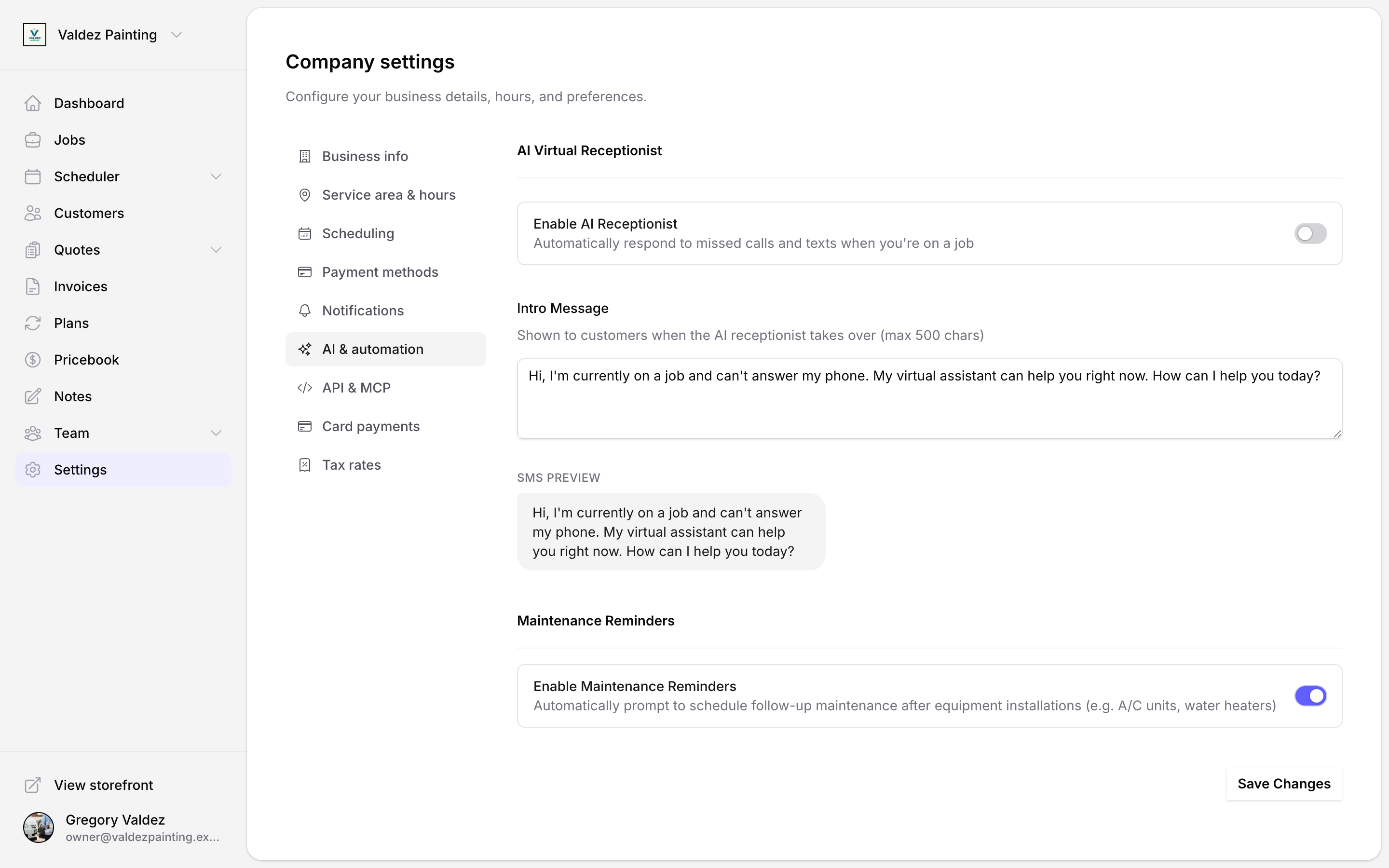
AI virtual receptionist
When you are on a job and cannot answer your phone, the AI receptionist can reply automatically to customers who text or call your Zoop business number. It introduces itself and answers common questions based on what you tell it.
Receptionist conversations show up on the customer's record. Open any customer, go to their Timeline tab, and set the filter to AI sessions to see those exchanges alongside the customer's other SMS, email, and call activity.
What the receptionist can say
You control what information it shares. In the AI knowledge base section you can set:
- Dispatch fee — if you charge one, the receptionist will quote it when a customer asks.
- Services offered — a list of what you do (for example: water heater replacement, drain cleaning).
- Services not offered — a list of what you do not do (for example: commercial jobs, septic work).
- Service area description — a plain-English description of your coverage (for example: Greater Orlando area within 25 miles of zip 32801).
The receptionist will only answer within those guardrails. It will not invent prices, offer discounts, or make commitments beyond what you have specified.
Intro message
The intro message is the first thing the receptionist sends when it takes over. You write it. Keep it short and personal — something like: "Hi, I'm currently on a job and can't get to my phone right now. I'll follow up as soon as I'm done."
There is a 500-character limit. The settings form shows an SMS preview of your message as you type it.
Turn it on
Open settings
Go to Settings and select the AI & automation tab.
Enable the receptionist
Toggle Enable AI receptionist on.
Write your intro message
Type your intro message in the Intro message field. The SMS preview updates as you type.
Fill in the knowledge base
Add your dispatch fee, services offered, services not offered, and service area description. These fields appear once the toggle is on.
Save
Select Save changes.
The AI receptionist only activates on your Zoop business number. If customers reach you on a personal cell number, this feature has no effect.
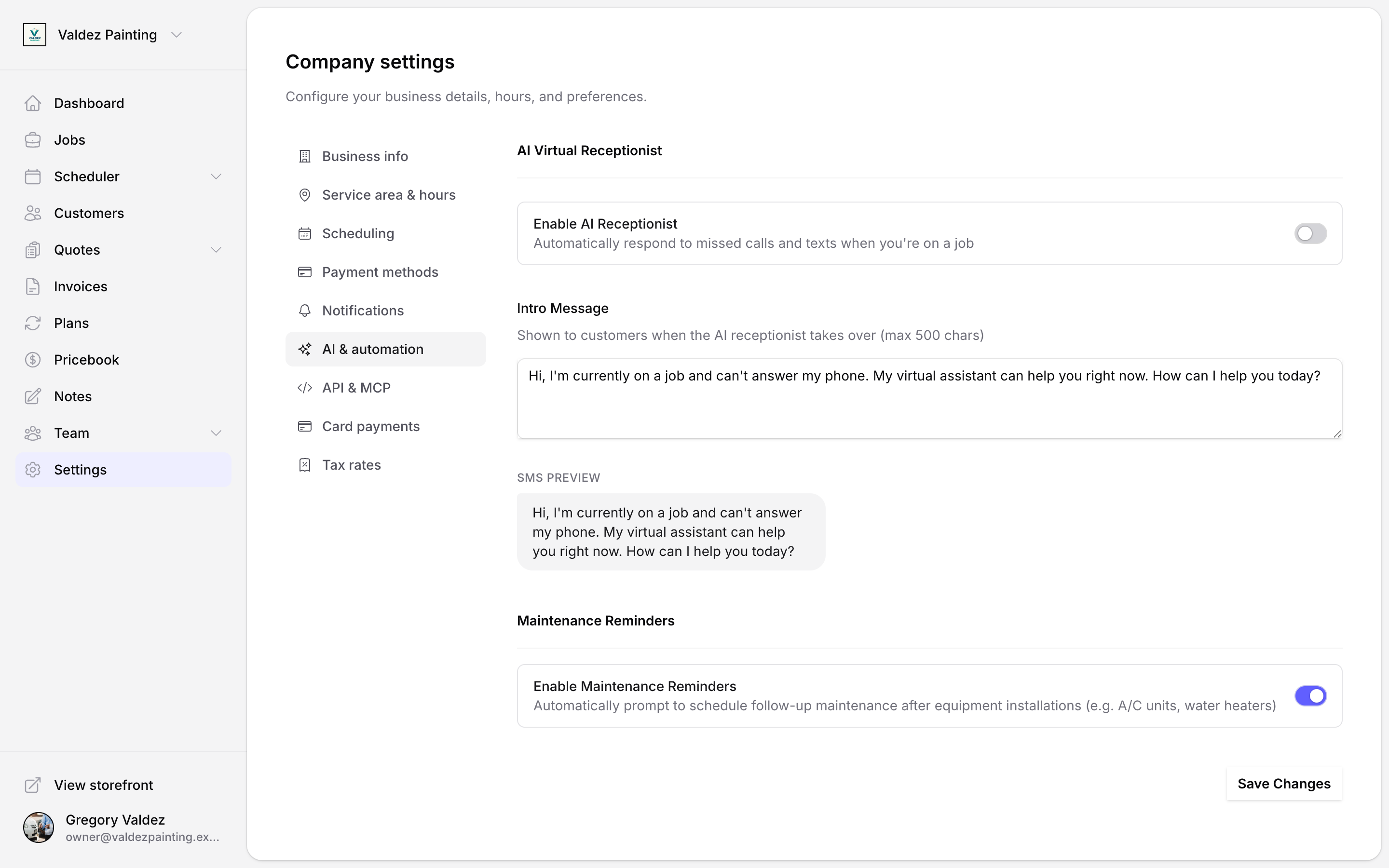
Maintenance reminders
When this is on, Zoop prompts you to schedule a follow-up maintenance visit after equipment installations — for example, after you install an A/C unit or a water heater. The reminder appears inside Zoop; Zoop does not contact the customer on your behalf.
To turn it on, go to Settings, select the AI & automation tab, and toggle Enable Maintenance Reminders on.
Auto-text when a job is running late
Zoop watches your route in real time. When the estimated arrival for a visit slips past the time window you promised the customer, Zoop can automatically send them a heads-up text.
This is off by default. When it is off, you or your tech send the late-arrival text manually from the route screen. Turn it on only if you want Zoop to send the text without you reviewing it first.
To enable it, go to Settings, select the Notifications tab, and toggle Auto-text customers when a job is likely to run late on.
This only fires for hard-window visits — jobs where you confirmed a specific arrival window with the customer (for example, "between 10 am and noon"). Flexible or FYI-window visits are not affected.
Missed jobs
If a job's scheduled day passes without it being marked done, Zoop flags it automatically. It appears in a Needs rescheduling tray at the top of the dispatch board. From there you can generate a reschedule link and send it to the customer so they can pick a new time.
Zoop does not move or reassign the job on its own. You decide whether and when to send the link.
Job drafting from notes (advanced)
If you connect an external AI assistant — such as Claude Desktop — to Zoop, you can dictate rough job notes and have the assistant draft a job for you. You review and confirm before anything is saved.
This is not something you set up inside Zoop. It requires a separate developer integration called MCP. Most solo contractors will not need it. If you are curious, see MCP for setup instructions.
There is no AI chat inside Zoop itself for this feature.
Voice notes (mobile only)
In the Zoop mobile app, you can record a voice note and Zoop transcribes it to text. Tap the microphone button in the note composer, talk through what happened on the job, and Zoop turns it into a note you can edit and save. The original audio is kept as an attachment on the note.
Voice transcription has a monthly limit per business. When you reach it, transcription pauses until the 1st of the month.
The web app shows a microphone button in the note composer too, but it is currently disabled — its tooltip reads "Voice notes coming soon." Use the mobile app for voice notes for now.
Where to configure AI features
All AI automations live in one place: