
API keys
Two key types for server-to-server access, with instant revocation.
An API key is a secret string that proves to Zoop who is making a request. Unlike the browser-based OAuth flow, there is no redirect or login screen — you attach the key directly to each request, and Zoop lets it through. Use API keys in server-side scripts, background jobs, or automated pipelines that run without a human present.
Tool names appear here in their canonical dotted form (for example customers.create). When you call a tool, replace the dots with underscores — customers_create. See tool names. The example payloads below already use the wire form.
Two key types
Zoop issues two kinds of API key. You can tell them apart by their prefix — the short tag at the start of the key string:
| Type | Prefix | Actor | Has userId | Can call user-only tools |
|---|---|---|---|---|
| User key | zoop_uk_ | user | Yes — the issuing user | Yes |
| Tenant key | zoop_tk_ | tenant | No | No |
User keys tie every write to a specific team member. Any API tool that records created_by or updated_by, or that otherwise requires a real user identity, needs a user key. Use a user key when your integration writes data on behalf of a specific person — for example, a job-creation script that should record which technician submitted the work.
Tenant keys are for read-heavy integrations or pipelines where individual attribution does not matter — for example, a reporting dashboard that reads invoices and jobs. They cannot call tools that require a user identity.
The prefix (zoop_uk_ / zoop_tk_) is a visual hint, not the source of truth. The actual actor type is set by the actor_kind column in the database when the key is created.
Create a key
Open settings
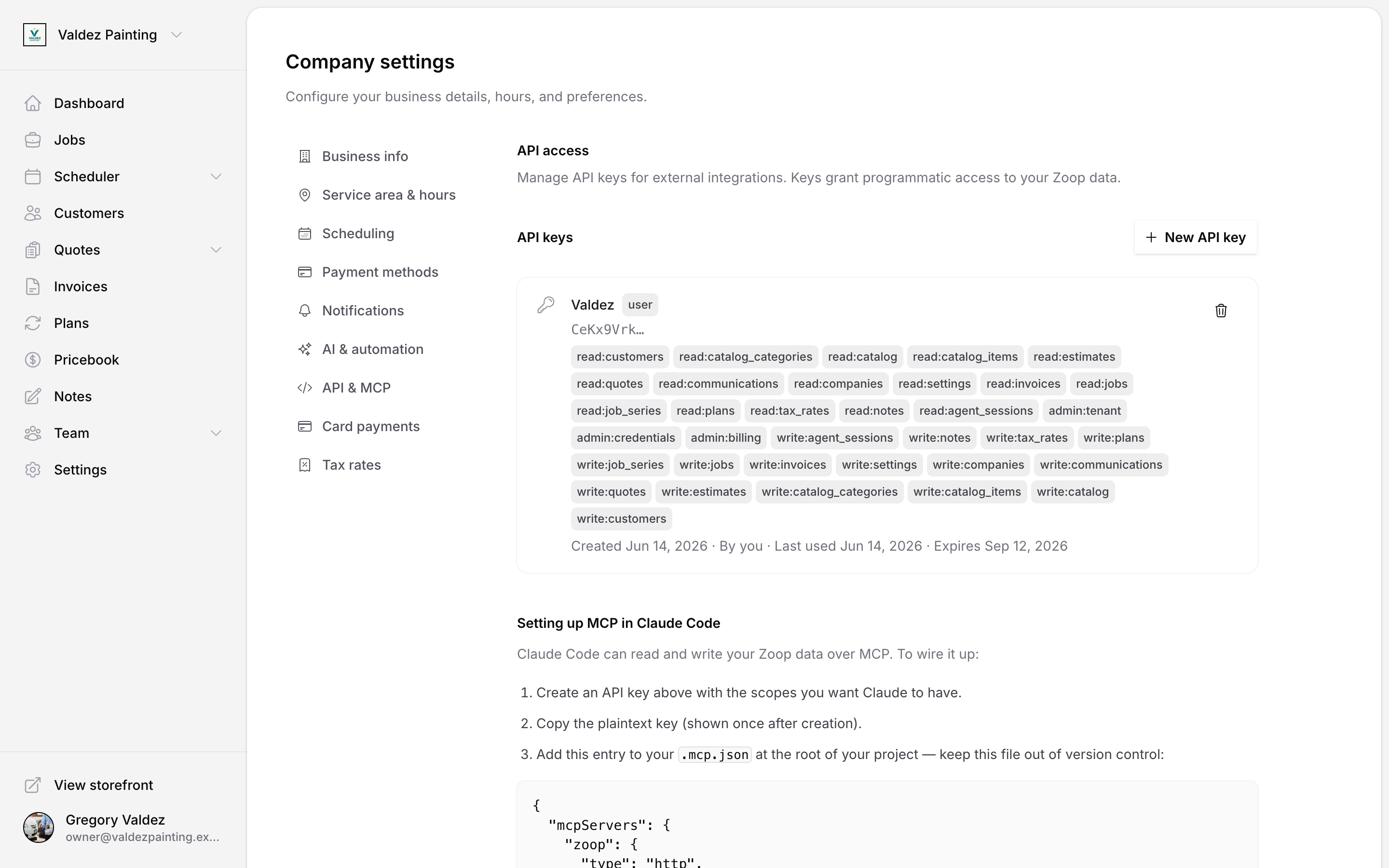
In Zoop, go to Settings → API & MCP. You need the owner role to manage API keys. If you do not see API & MCP in the Settings menu, ask your account owner to grant you access.
Click New API key
Choose User key or Tenant key (see two key types above if you are unsure), then select the scopes your integration needs. Scopes control which API tools the key can call — pick the minimum set you actually need.
Copy the key immediately
The key value is shown once, right now. Zoop does not store the raw key — only a one-way hash of it — so there is no way to see it again later. Copy it to your password manager or secrets store before closing this screen. If you lose it, you will need to revoke it and create a new one — the key itself is not recoverable.
The key is active immediately after creation.
Send a request
To make an authenticated request, add your key to the Authorization header using the Bearer scheme — that just means the word Bearer, a space, then your key. You do this on every request; there is no separate login step first.
curl -X POST https://app.zoop.pro/api/mcp \
  -H "Authorization: Bearer zoop_uk_<your-secret>" \
  -H "Content-Type: application/json" \
  -H "Accept: application/json, text/event-stream" \
  -d '{"jsonrpc":"2.0","id":1,"method":"tools/call","params":{"name":"customers_search","arguments":{"q":"Henderson"}}}'
const response = await fetch('https://app.zoop.pro/api/mcp', {
  method: 'POST',
  headers: {
    'Authorization': `Bearer ${process.env.ZOOP_API_KEY}`,
    'Content-Type': 'application/json',
    'Accept': 'application/json, text/event-stream',
  },
  body: JSON.stringify({
    jsonrpc: '2.0',
    id: 1,
    method: 'tools/call',
    params: {
      name: 'customers_search',
      arguments: { q: 'Henderson' },
    },
  }),
})
https://app.zoop.pro is a placeholder. Resolve your real host from GET /.well-known/oauth-protected-resource — never hardcode it.
On every request, Zoop hashes the token and looks it up in the database. There is no session or cache — the lookup happens on every single call.
Scopes
Scopes are permissions. Each scope unlocks a set of API tools, and a key can only call tools covered by the scopes it was issued with. Scopes are fixed at creation — you cannot add scopes to an existing key. If you need more scopes later, revoke the key and create a new one with the broader set.
See scopes for the full scope catalog.
User keys are capped by the member's ceiling
A user key (zoop_uk_…) is a user-actor credential, so its scopes are bounded by the owning member's ceiling — the maximum external scopes that member is allowed (set by their role, adjustable by an owner). Two things follow:
- Creation fails if you request a scope beyond the member's current ceiling. Lower the request, or have an owner widen the member's ceiling first.
- Effective scopes are re-checked on every request as
granted ∩ ceiling. If an owner lowers the member's ceiling later, the key is narrowed immediately — you do not need to recreate it.
Tenant keys (zoop_tk_…) are not bound to any member ceiling — they represent the account, not a person, so their scopes are exactly what you set at creation. See scopes & permissions for the full model.
Key expiry
Keys do not expire by default. You can set an expiry date when you create a key — once that date passes, the key stops working and returns a 401 error with error: "expired". Set an expiry if you want automatic cleanup for short-lived integrations.
Revoke a key
Go to Settings → API & MCP, find the key in the list, and select Revoke. Revocation is instant — the key stops working on the very next request. There is no grace period, so make sure any running integrations that use it are updated first, or expect them to start returning 401 errors immediately.
Rotate a key
Key rotation means replacing an old key with a new one without downtime. Do this on a schedule, or whenever a key may have been exposed.
Issue a new key
Create a new key with the same type and scopes as the one you are replacing. Keep the old key active for now.
Update your integration
Deploy the new key value to your environment variables or secrets manager. Verify your integration is making successful requests with the new key before moving on.
Revoke the old key
Once your integration is confirmed working on the new key, revoke the old one from Settings → API & MCP. The old key stops working immediately.
Error reference
If a request fails authentication or authorization, Zoop returns one of these responses:
| Situation | Status | Body |
|---|---|---|
| Key not found | 401 | {"error":"invalid_token","reason":"key_not_found"} |
| Key revoked | 401 | {"error":"invalid_token","reason":"key_revoked"} |
| Key expired | 401 | {"error":"expired"} |
| Scope missing | 403 | {"error":"insufficient_scope"} |
No Authorization header | 401 | {"error":"missing_token"} |
| Rate limited | 429 | Retry-After header included |
If you receive 401 with reason: "key_revoked", the key is permanently dead and retrying will not help. Stop the integration and issue a new key before restarting it.
Security checklist
- Store the key in an environment variable or a secrets manager. Never put it in source code or commit it to version control.
- Request only the scopes your integration actually needs. Fewer scopes means less damage if the key leaks.
- Use one key per integration. That way, if one key is compromised, you revoke only that key without affecting anything else.
- If you think a key has been exposed, revoke it now — revocation takes effect on the next request, not at the next rotation cycle.
Related
- Scopes — full list of available scopes
- OAuth — user-delegated access via browser flow
- Errors — full error code reference
- Rate limits — per-credential and per-tenant limits